

Add an event
Hierdie inhoud is nog nie in jou taal beskikbaar nie.
Add an event to put a meeting, deadline, training or other date in the calendar. The people and departments you assign are told straight away, and reminded before it starts.
Before you start
Section titled “Before you start”- Decide the day. An event starts and ends on the same day, and it can’t be in the past.
- Decide who should take part: one or more people, one or more departments, or both. You must assign at least one.
Add an event
Section titled “Add an event”-
Open Execution, then Calendar.
-
Open the window for the day of the event:
- For an event today, select Create Event in the Calendars card.
- For another day, select month, then select an empty part of the day’s box. Selecting the date’s number opens that day on its own instead.
Select month, then select an empty part of the day’s box. Selecting the date’s number opens that day on its own instead.
You can select today or a later day. The window opens with the date as its title.
-
Choose an Event Type, and fill in Event Name.
-
Set the Start Time and End Time.
-
Choose people in Assign People, departments in Assign Department(s), or both.
-
Add files in Attach Files, if you have any.
-
Write the Event Description: what the event is, and what people should prepare or do.
-
Select Submit.
VirgilTrack shows “The Event was Successfully Recorded.” Select OK. The calendar reloads with your event on it.
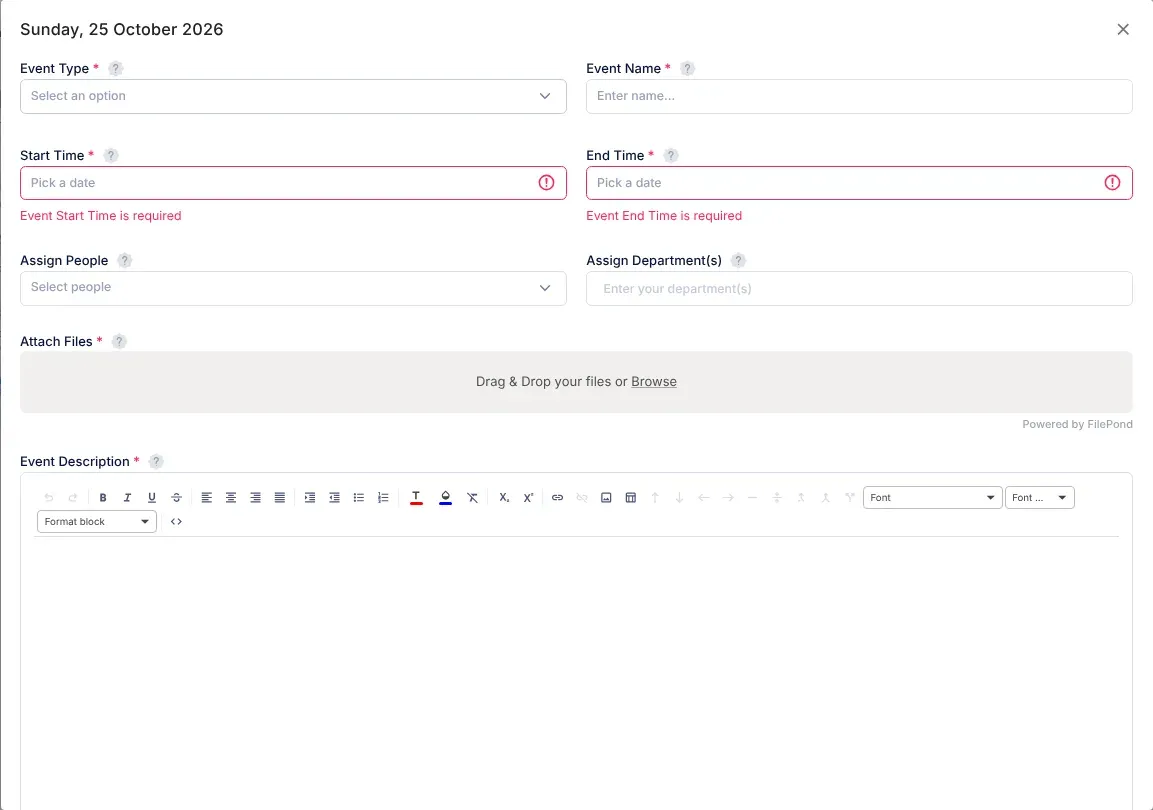
The fields
Section titled “The fields”| Field | Required | What to enter |
|---|---|---|
| Event Type | Yes | The kind of event. See Event types. |
| Event Name | Yes | A short name, for example “Budget committee meeting”. |
| Start Time | Yes | When it starts. The box starts empty, with a message saying it is required: select it and choose a time. |
| End Time | Yes | When it ends, after the start time. Like Start Time, it starts empty: choose a time. |
| Assign People | One of the two | The people who should take part. Type part of a name to find someone. |
| Assign Department(s) | One of the two | Departments whose members should all take part. Start typing, then choose the department from the suggestions. |
| Attach Files | No | Up to 20 files, such as an agenda or a report, each up to 2 MB. Drop them on the box, or select it to choose them. |
| Event Description | Yes | What it is about, what to prepare, and what should come out of it. You can use headings, lists and bold text. |
Attach Files is marked as required, but you can add an event without a file.
Event types
Section titled “Event types”Each type comes with a short description in the list:
| Event type | Description |
|---|---|
| Task | “Work-related task” |
| Meeting | “Scheduled meeting” |
| Deadline | “Project deadline” |
| Holiday | “Public or company holiday” |
| Training | “Training session or workshop” |
| Reminder | “A reminder for an event” |
| Announcement | “Company-wide announcement” |
| Other | “Miscellaneous event” |
What happens next
Section titled “What happens next”- Everyone assigned is told. Each person you assigned, each member of the departments you assigned, and the CEO get a notification in VirgilTrack, New Calendar Event. You don’t get this notification yourself.
- People you assigned by name also get an email, for example “Meeting for you: Budget committee meeting (Tue 3 Nov)”, with an Open in VirgilTrack button. They get a text message too if their settings allow it.
- Members of assigned departments get an email saying it has been assigned to their department. VirgilTrack never texts a whole department.
- You see how people were told, for example “Maria Haufiku will get an email and a text.” See See who was told about work you assign.
- You get an email too, New Calendar Event, with a link to the calendar.
- Reminders follow. Everyone assigned is reminded 7, 3 and 1 days before, at 09:00, and an hour before it starts. VirgilTrack plans these reminders each night at midnight, so an event you add for later today gets no reminder, and one you add for tomorrow gets only the reminder an hour before. See Reminders.
- Your weekly report. VirgilTrack may suggest a line about the event for your work report. See Suggestions and activity prompts.
People assigned by name see the event as a calendar task: until someone marks it as done, it counts as their open work. See Events and calendar tasks.
If something goes wrong
Section titled “If something goes wrong”| Message | Why | What to do |
|---|---|---|
| “There are required fields you did not provide. Please check and try again!” | A required field is empty. A red message under it says which, for example “Event Name is required”. | Fill in the field and select Submit again. |
| “An Event must either have atleast 1 person and/or 1 department subscribed to it. You did not subscribe any!” | Nobody is assigned. | Choose at least one person or department. |
| “Events cannot be scheduled in the past. Please select a start date and time that is in the future.” | The start time has already passed today. | Choose a later Start Time. |
| “The End date/time must be after Start date/time.” | End Time is the same as or earlier than Start Time. | Choose a later End Time. |
| “Events cannot be scheduled more than 2 years in advance.” | You chose a day more than two years ahead. | Choose an earlier day. |
| “The following file(s) are over the maximum size of 2mb:” and the file names | A file is bigger than 2 MB. Nothing was saved. | Remove the file, or make it smaller, and submit again. |
| An Error! message when you submit, after typing a department’s name yourself | The name doesn’t exactly match a department in VirgilTrack. Nothing was saved. | Remove it from Assign Department(s), and choose the department from the suggestions. |
| You can’t select a day in the calendar. | The day is in the past, or the calendar is showing the week list. | Select month, then a day from today onwards. |