

Your weekly report
Hierdie inhoud is nog nie in jou taal beskikbaar nie.
Your weekly report tells the person you report to, usually your manager, what you did this week. You write a few lines for each day as you go. At the end of the week, VirgilTrack turns your notes into a tidy report that you check and submit.
Before you start
Section titled “Before you start”Your report goes to the person you report to. If nobody has been set as your manager yet, the page says “Your reporting line isn’t set up yet” and you can’t write a report. See Who your report goes to.
The page at a glance
Section titled “The page at a glance”Open Work Reports in the menu on the left.
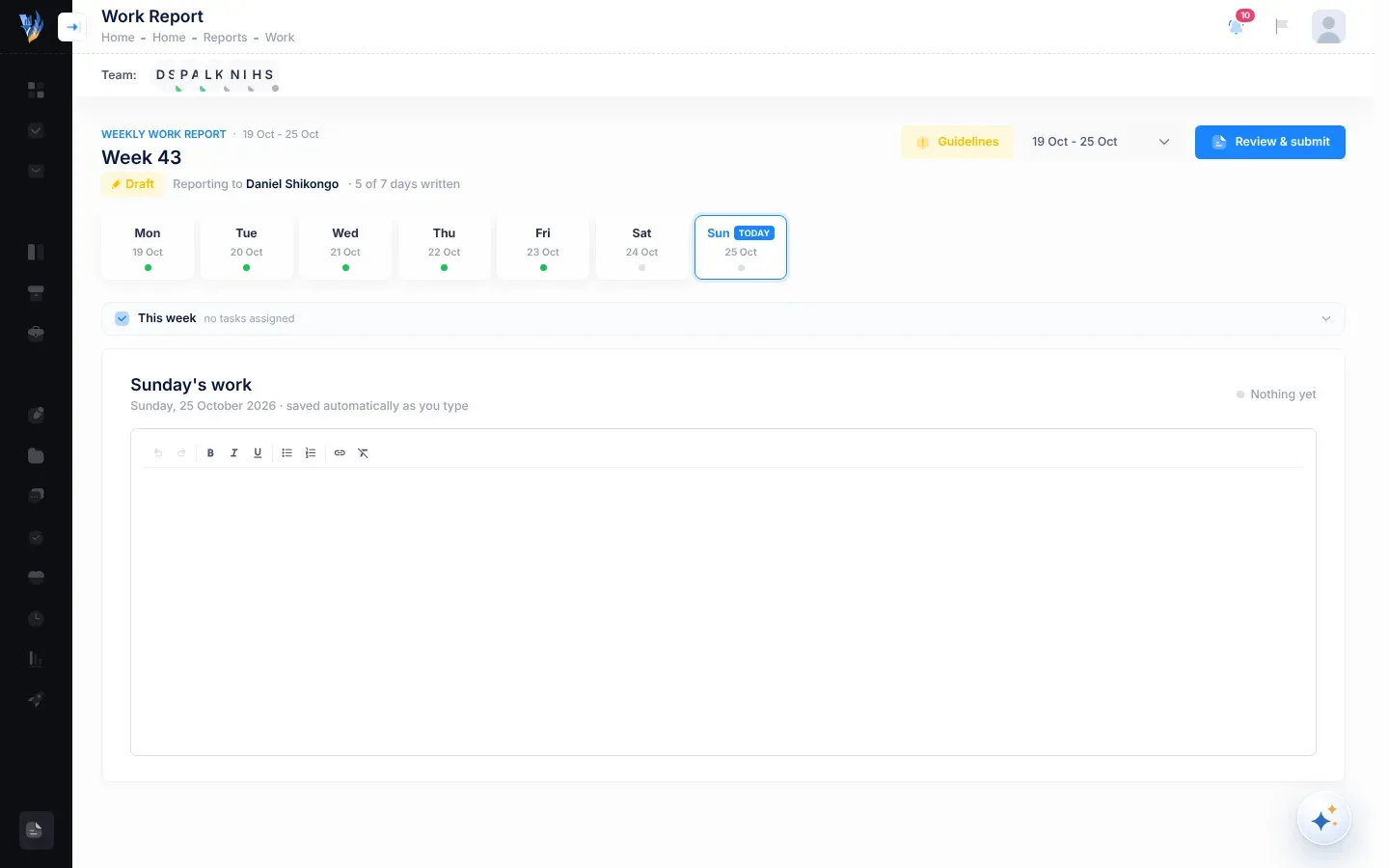
| Part | What it shows |
|---|---|
| Weekly work report and the dates | The week you are looking at, for example “19 Oct - 25 Oct”, with its number below, for example Week 43. |
| Draft or Submitted | Whether you have sent this report yet. |
| Reporting to | The person who receives your report. |
| … of 7 days written | How many days of the week have an entry so far. Shown while the report is a draft. |
| Guidelines | What a good entry includes. See What to write. |
| The week list | Shows the dates of the week you are on, for example “19 Oct - 25 Oct”. Choose another week of this year to open it. See Write for an earlier week. |
| Review & submit | Prepares your report so you can check it and send it. See Submit your weekly report. |
| The day cards | One card for each day, Mon to Sun, with its date. Today’s card says Today. The dot on a card turns from grey to green once that day has an entry. |
| This week | Your tasks for the week. See Your tasks this week. |
| …’s work | The box where you write the selected day’s entry, for example Monday’s work. |
You may also see From other departments above the This week bar, and Suggested by your manager and From your email below the day’s box. They only appear when they have something to show.
Write your entry for a day
Section titled “Write your entry for a day”-
Open Work Reports. Today’s card is selected.
-
To write for another day, select that day’s card.
-
Type what you did in the box under the day’s name, for example Tuesday’s work.
Use the buttons above the box for bold, italic, underline, bulleted and numbered lists, and links. There are also buttons to undo, redo and clear formatting.
-
Carry on with your day. There’s nothing to save.
Your entry is saved as you type: the line under the day’s name says “saved automatically as you type”. The day’s status changes from Nothing yet to Written, and its card gets a green dot.
You can come back and change any day’s entry until you submit the report.
What to write
Section titled “What to write”Select Guidelines to see the Reporting Guidelines. Each piece of work you report should say:
- the name of the task;
- the action: what was done;
- the outcome: what was achieved;
- the context: why it is important;
- the time: when the task was completed;
- the challenges you faced, and how you resolved them.
You don’t have to number them, as long as each one is there. For example: “Drafted the supporting documents policy with input from the finance team, and presented it to management on 14 October. It was adopted on 16 October, so staff now have one standard for supporting documents.”
Your tasks this week
Section titled “Your tasks this week”The This week bar sums up the work given to you this week: how much is open, overdue and done, for example 3 open, 1 overdue and 2 done. If you finished something that your entries don’t mention yet, it also says how many, for example 1 not in report. If nothing is given to you, it says no tasks assigned.
Select the bar to see the list. Select it again, or anywhere outside the list, to close it.
| Group | What’s in it |
|---|---|
| Open | Work that isn’t finished and is due by the end of this week, including anything overdue. An overdue date is shown in red. |
| Done this week | Work you finished this week, with the day you finished it. |
Each line has a letter for the kind of work:
| Letter | Kind of work |
|---|---|
| S | A strategy task given to you. |
| C | A calendar task given to you or to your department. |
| R | A risk control you are responsible for. |
- Select a title to open the work in a panel on the right.
- In report means you finished that work and your entries already mention it.
- Draft asks Virgil to write an entry about that work for the selected day. See the next section.
Let Virgil draft an entry
Section titled “Let Virgil draft an entry”-
Select the day you want to write for.
-
Open the This week bar.
-
Select Draft beside the work.
Virgil Copilot opens and drafts an entry from what VirgilTrack recorded about that work and the messages on it. If there isn’t enough to go on, Virgil asks you what you did.
-
Read Virgil’s text. It is shown on a card headed with the day, for example “Add to Tuesday”.
-
If it is right, select Confirm. If not, select Not now, or tell Virgil what to change.
Virgil only adds text to your report after you select Confirm. While your weekly report page is open on that week, you see the text straight away in the day’s box. You can change it like anything else you wrote.
You can also ask Virgil Copilot yourself, for example “draft today’s entry from what I did”. Virgil can add to this week’s or last week’s report, as long as it isn’t submitted.
Suggestions and work from your email
Section titled “Suggestions and work from your email”- Suggested by your manager lists sentences about things you did in VirgilTrack this month, such as implementing a risk control. Despite its name, VirgilTrack writes these from your own actions. Select Add to and the selected day, for example Add to Friday, then Yes, I confirm, to add one to that day. Select Dismiss, then Yes, forget, to hide it for good. See Suggestions and activity prompts.
- From your email lists work VirgilTrack found in your email during the week you are looking at, if you have connected your mailbox. Each line shows the day it happened. Select Add to and that day, for example Add to Wednesday. VirgilTrack opens that day, adds the line and says, for example, “Added to Wednesday.” Select Dismiss to hide it. See Tasks from your email.
News from other departments
Section titled “News from other departments”From other departments shows things colleagues in other departments wrote in their reports that affect your department, such as a system outage or a new deadline. You can message the author straight from the card. See News from other departments.
Write for an earlier week
Section titled “Write for an earlier week”-
Open the week list at the top of the page, beside Guidelines. It shows the dates of the week you are on.
It lists the weeks of this year that have a report, newest first, by their dates, for example “12 Oct - 18 Oct”.
-
Choose the week.
The page shows that week’s entries, tasks and email work. If the week isn’t submitted yet, you can write in it and submit it as usual. If it is submitted, you see Report submitted, and you can reopen it with Reopen and edit.
If something goes wrong
Section titled “If something goes wrong”| What you see | Why | What to do |
|---|---|---|
| “Your reporting line isn’t set up yet” | Nobody has been set as the person you report to. | Ask your CEO or an administrator to set your manager. See Who your report goes to. |
| “You are not authorized to view this page.” | You opened a link to the staff report page, but you are a manager or the CEO. Links in news from other departments go to the staff page. | Select Work Reports in the menu instead: it opens the page for your role. |
| A day’s dot stays grey. | The entry has no words in it yet, for example only an empty list. | Write at least a few words for the day. |
| There’s no Draft button beside some work. | You finished that work and your entries already mention it: it shows In report. | Nothing to do. |
| The day boxes are hidden and the page says Report submitted. | This week’s report has been sent. | To change it, select Reopen and edit. |