

A risk's page
Hierdie inhoud is nog nie in jou taal beskikbaar nie.
Each risk has its own page, Risk Details. It brings together what the risk is, how serious it is, who follows it, the controls that reduce it and the team’s discussion about it.
Open a risk’s page
Section titled “Open a risk’s page”- From the register: in Risk Register, select the risk’s row, or the Open button (an eye) in its Actions column. See The risk register.
- From a notification or reminder: links about a risk open its page. For example, select a “New risk created” notification under the bell, or Review the risk in a review reminder email. This is also how the CEO, who has no Risk Register in the menu, opens a risk.
In the register, selecting a risk that hasn’t been assessed opens the assessment panel instead, if you are its owner. See Assess a risk.
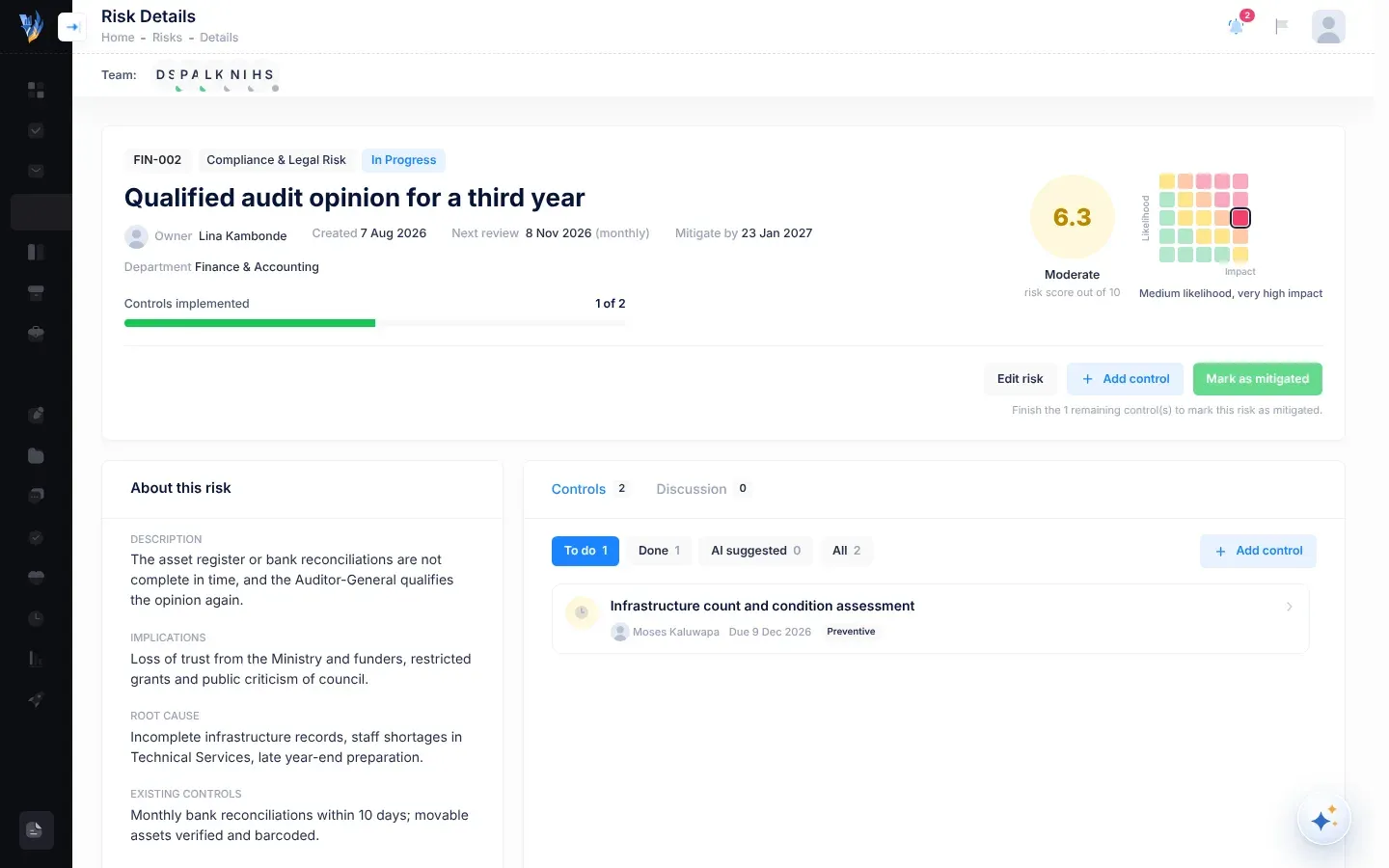
The top of the page
Section titled “The top of the page”Badges above the name show the risk’s code, its category and its status, such as In Progress or Mitigated.
Under the name:
| Item | What it shows |
|---|---|
| Owner | The person who recorded the risk. |
| Created | The date it was recorded. |
| Next review | The date of the next review, with how often it is reviewed in brackets, for example “(monthly)”. The date is red when it has passed and the risk isn’t mitigated. |
| Mitigate by | The deadline for dealing with the risk. It is red when it has passed and the risk isn’t mitigated. |
| Department | The department whose register the risk is in. |
Controls implemented shows how many of the risk’s controls are done, for example “2 of 3”, with a bar. Controls suggested by VirgilTrack’s AI that nobody has accepted aren’t counted.
The score is in the circle on the right: the score out of 10, its level (such as High) and “risk score out of 10”. See How risk scores work.
The small grid next to it has likelihood up the side and impact along the bottom. The risk’s own square is outlined. A line under the grid says where the risk sits in words, for example “High likelihood, medium impact”.
The buttons
Section titled “The buttons”| Button | What it does |
|---|---|
| Edit risk | Opens the Edit Risk page, where you can change the risk’s details. See Edit a risk. |
| Add control | Opens the Add a control window, to plan an action that reduces the risk. See Add a control to a risk. |
| Mark as mitigated | Closes the risk as mitigated. You can only select it when every control is done. Until then, a line under the buttons says how many are left, for example “Finish the 2 remaining control(s) to mark this risk as mitigated.” See Mark a risk as mitigated or archive it. |
Mark as mitigated isn’t shown once the risk is mitigated.
About this risk
Section titled “About this risk”The About this risk card on the left shows the risk’s information. Only the parts that have been filled in appear.
| Part | What it shows |
|---|---|
| Description | What could happen, and where. |
| Implications | What would happen to the organisation if the risk happened. |
| Root cause | Why it could happen. |
| Existing controls | What was already in place against the risk when it was recorded. |
| Proposed mitigation | How the team planned to reduce it. |
| Mitigation notes | Notes added to the risk, such as mitigations suggested from the strategic plan. |
| Exposure and Mitigation budget | The possible loss and the expected cost of reducing the risk, in N$. |
| Affected departments | The departments the risk would affect. |
| Threatens objectives | The objectives in your strategic plan that the risk puts in danger. |
| Tags | Labels the risk brought with it from the Risk Repository. |
| Responsible people | The people who follow the risk until it is mitigated and get its review reminders. |
The Controls tab
Section titled “The Controls tab”The Controls tab lists the actions planned to reduce the risk. The number on the tab counts them, without unaccepted AI suggestions.
- The buttons To do, Done, AI suggested and All choose which controls you see. Each shows how many there are. The tab opens on To do, or on Done if nothing is left to do.
- Each control shows what needs to be done, who is responsible, and either its due date or when it was done and by whom. A due date in red has passed.
- The round icon at the start shows its state. Point at it to read Implemented, To do, Overdue or AI suggestion. A tick means implemented.
- Select a control to open it in a panel on the right.
- Add control at the top of the tab does the same as Add control at the top of the page.
For more about controls, see Risk controls, Add a control to a risk and Mark a control as implemented.
The Discussion tab
Section titled “The Discussion tab”Use Discussion to raise concerns, share findings and attach evidence about the risk as a whole. Everyone who can open the risk can read and post. The number on the tab counts the comments.
To comment on one control’s progress instead, open the control. See Comment on a control.
Post a comment
Section titled “Post a comment”-
Select the Discussion tab.
-
Type your comment in the box that says “Discuss this risk with the team…”.
-
To attach files, select the paper clip (Attach files) and choose them. You can attach up to five files to a comment, each up to 20 MB.
Files you’ve chosen appear above the box. Select the cross next to one to take it off.
-
Select Send.
You can send a comment with text, files or both. Send stays greyed out until there is something to send.
Read the discussion
Section titled “Read the discussion”Until someone posts, the tab says No discussion yet. Comments are listed oldest first, with the newest at the bottom. Each shows who wrote it and how long ago. Point at the time to see the exact date and time. Select an attached file to open it in a new tab.
If something goes wrong
Section titled “If something goes wrong”| What you see | Why | What to do |
|---|---|---|
| “Risk not found” | The risk was removed, or it belongs to another organisation. | Select Back to the register. |
| Mark as mitigated is greyed out | Some controls aren’t done yet. | Finish the remaining controls first. See Mark a control as implemented. |
| A file name followed by “is larger than 20 MB.” | That file is too big. | Make the file smaller, or share a link to it instead. |
| “You can attach up to 5 files per comment.” | You chose more than five files. | Send the rest in another comment. |
| “Couldn’t post your comment. Please try again.” | Sending failed. Nothing was posted. | Select Send again. |