

Comment on a control
Hierdie inhoud is nog nie in jou taal beskikbaar nie.
Each control has its own comments. Use them to post progress updates, ask questions and attach evidence, such as a signed report or a photo of finished work. Everyone who opens the control sees them.
Post a comment
Section titled “Post a comment”-
Open the risk’s page and select the Controls tab.
Managers and employees: Risk Register, then the risk. The CEO: select your picture, then Risk Register, and select the risk.
-
Select the control.
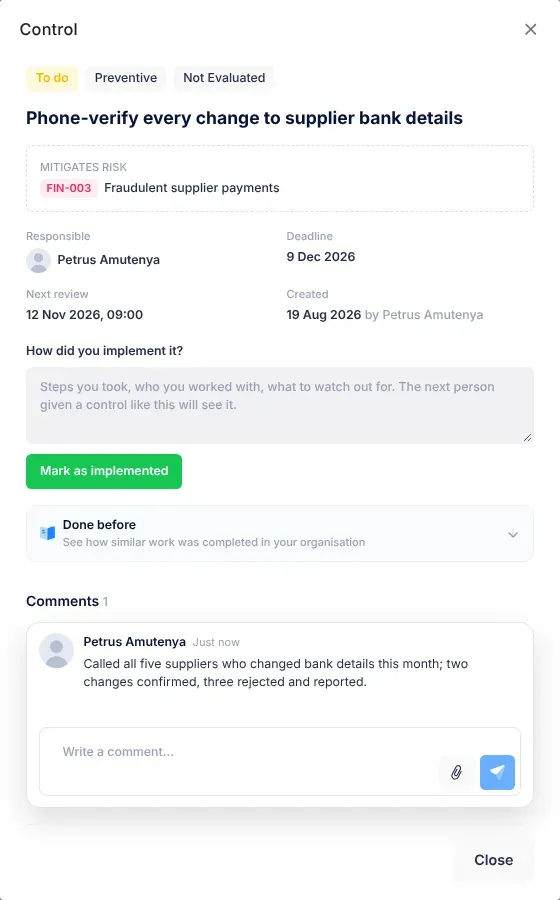
Its panel opens at the side of the screen. You can also open a control from an email, a notification, the calendar or your weekly report: its panel has the same Comments section.
-
Scroll down to Comments.
-
Type your comment in the box that says “Write a comment…”.
-
Optional: to attach files, select the paper-clip button (Attach files) and choose the files.
You can attach up to five files to a comment, each up to 20 MB. The files you chose appear above the box with their sizes. To take a file off, select the cross beside it (Remove).
-
Select the send button (Send).
You can post a comment with text only, with files only, or with both. The send button stays unavailable until there is something to send.
What happens next
Section titled “What happens next”- Your comment appears at the bottom of the list, with your name and how long ago you posted it. Point at the time to see the full date and time.
- Attached files appear under the comment with their names and sizes. Select a file to open it in a new tab.
- On the risk’s Controls tab, the control’s row shows how many comments and files it has.
- VirgilTrack may suggest a line about your update for your weekly report. See Suggestions and activity prompts.
Posting a comment doesn’t send anyone a notification. If someone needs to read it, tell them.
Read earlier comments
Section titled “Read earlier comments”The panel shows the five latest comments. To see older ones, select Show … earlier comments at the top of the list. A control with no comments shows “No comments yet” and “Post progress updates, questions or files for this control.”
If something goes wrong
Section titled “If something goes wrong”| What you see | Why | What to do |
|---|---|---|
| “… is larger than 20 MB.” | One of the files is too big. It wasn’t added. | Make the file smaller, for example by saving a PDF at a lower quality, or split it. |
| “You can attach up to 5 files per comment.” | The comment already has five files. | Send it, then post the other files in another comment. |
| “Couldn’t post your comment. Please try again.” | Sending failed. Nothing was saved. | Try again. Your text and files are still in the box. |
- Attach evidence when you finish. A comment with the signed report or photo makes the control easy to check at the next review or audit.
- Discuss the whole risk in its Discussion tab. Use a control’s comments for that control only. See A risk’s page.