

Invite team members
Hierdie inhoud is nog nie in jou taal beskikbaar nie.
When someone new joins your organisation, invite them to VirgilTrack. They get an email with a link to set up their own account, and they join the department you choose.
Before you start
Section titled “Before you start”- You need to be the CEO or an administrator.
- The person’s department must already exist. See Departments.
- Have the person’s first name, last name and work email address ready.
Invite someone
Section titled “Invite someone”-
In the Team: bar under the header, select the green plus button, Invite a team member.
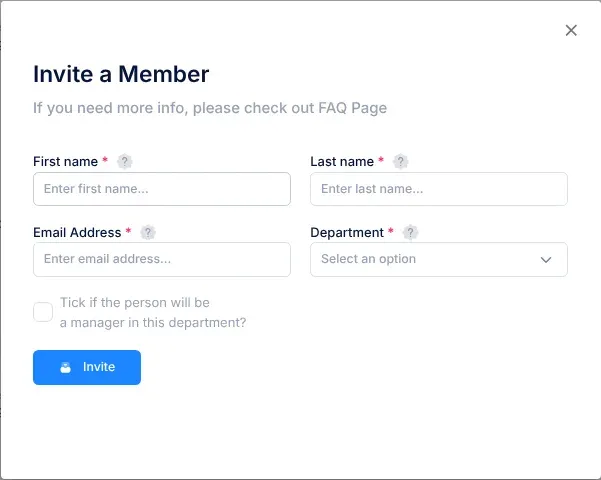
The Invite a Member window opens.
-
Fill in First name and Last name.
-
Fill in Email Address. Check it carefully: the invitation goes to this address.
-
In Department, choose the department the person will join.
-
If the person will manage that department, tick Tick if the person will be a manager in this department?
-
Select Invite.
When “Invite Successful” and “We have sent an email to … with further instructions” appear, close the message. The window closes too.
Below Invite, Pending Invitations lists invitations sent from VirgilTrack that haven’t been accepted yet, with the date each email was sent.
Each pending invitation also has a list that shows Manager, with Regular and CEO as the other choices. It doesn’t change anything yet: the person joins as you invited them. See Known limitations.
What happens next
Section titled “What happens next”- The person receives an email called “Invitation to Virgiltrack”, with a Setup Account button. They follow Accept an invitation to set up their account.
- When they have set up their account, they join the department you chose, with the Employee role. If you ticked the manager box, they get the Manager role instead and become a manager of that department.
- VirgilTrack sets their reporting line. An employee reports to a manager of their department, or to the CEO if the department has no manager yet. A manager reports to the CEO.
- They are added to your organisation’s weekly work reports.
To change their role or reporting line later, see Reporting lines and roles.
If something goes wrong
Section titled “If something goes wrong”| What you see | Why, and what to do |
|---|---|
| Invalid Parameters: “The FirstName supplied was invalid” | First name is empty. Fill it in and select Invite again. |
| Invalid Parameters: “The LastName supplied was invalid” | Last name is empty. |
| Invalid Parameters: “The Email supplied was invalid” | Email Address is empty. |
| Invalid Parameters: “The Department supplied was invalid” | No department is chosen. Choose one in Department. |
| Error: “The Department selected was not found in the database” | The department no longer exists. Close the window, open it again and choose another department. |
| Invite Failed: “Sending email failed for the following recipients: …” | VirgilTrack couldn’t send the email, so the invitation wasn’t saved, and the window closes. Open it again with the plus button, check the address and try again. If it keeps failing, contact your administrator. |
| You don’t see the green plus button | Only the CEO and administrators see it, and only when they belong to a department themselves. Administrators can also invite people from the organisation’s page. See Organisations. |
| The person can’t find the email | Ask them to look in their spam or junk folder for “Invitation to Virgiltrack”. If it isn’t there, invite them again. |