

Manage plans and page access
Hierdie inhoud is nog nie in jou taal beskikbaar nie.
The Manage page is the CEO’s control room for Execution. It lists the organisation’s strategic plans, lets you delete one, and lets you give people extra Execution pages, for example the KPIs page for a strategy officer.
Open Manage
Section titled “Open Manage”Open Execution, then Manage. Only the CEO has this page.
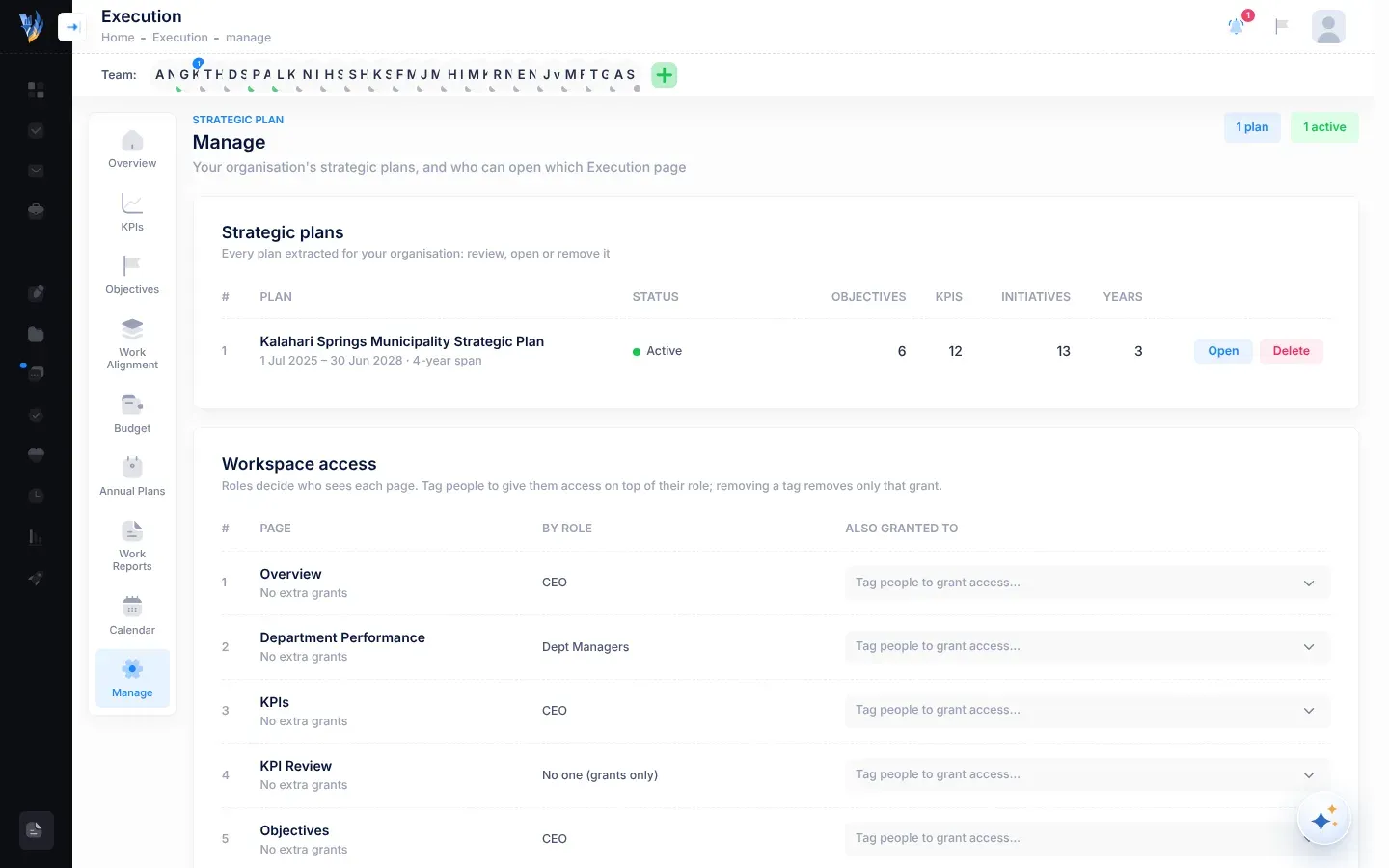
Strategic plans
Section titled “Strategic plans”The first table lists every strategic plan brought in for your organisation. Badges at the top count the plans and how many are active.
| Column | What it shows |
|---|---|
| Plan | The plan’s title, its start and end dates, and how many years it spans. |
| Status | Active (approved), Awaiting approval, Rejected or Draft. |
| Objectives, KPIs, Initiatives, Years | How many of each the plan has. |
Select Open (or Review, for a plan that isn’t approved) to go to the Overview page.
Delete a plan
Section titled “Delete a plan”Delete a plan when it was brought in by mistake, or before you bring in a new plan in its place.
- In the plan’s row, select Delete.
- Read the message Delete Strategic Plan?. It lists how many objectives, KPIs, initiatives, work items and plan periods will be deleted.
- Select Continue.
- In Final Confirmation, type
DELETEin capital letters. - Select Delete Permanently.
A message says “Strategic plan deleted successfully.” If the organisation now has no plan, Execution shows the upload page again. See Bring in your strategic plan.
If what you typed doesn’t match, nothing is deleted, and a message says “The confirmation text did not match. Nothing was deleted.”
Workspace access
Section titled “Workspace access”Every role sees certain Execution pages. Under Workspace access, you can give any person extra pages on top of their role. Removing a person takes away only that extra page; it never removes a page their role already gives them.
The table lists the pages you can grant:
| Page | By role | What it gives |
|---|---|---|
| Overview | CEO | The plan overview |
| Department Performance | Dept Managers | Department performance |
| KPIs | CEO | The KPIs page |
| KPI Review | No one (grants only) | Nothing in this version. See the note below. |
| Objectives | CEO | Objectives |
| Work Alignment | CEO | Work alignment |
| Initiatives | Dept Managers · Team Managers | The Initiatives page |
| Budget | CEO · Dept Managers | The Budget page |
| Annual Plans | CEO | Annual plans |
Give someone a page
Section titled “Give someone a page”- Find the page’s row.
- In Also granted to, select the box that says Tag people to grant access….
- Type part of the person’s name, and select them. You can add several people.
- To take a page away, remove the person’s name from the box.
Each change is saved at once. A message confirms it, for example “KPIs access updated — 2 people granted”. Under each page’s name, the table says how many people have been granted it, or “No extra grants”.
The list of people includes everyone in your organisation except the CEO and locked accounts.
If something goes wrong
Section titled “If something goes wrong”| What you see | Why | What to do |
|---|---|---|
| “Not allowed” and “Only the CEO can delete the organisation’s strategic plans.” | You aren’t the CEO. | Ask the CEO. |
| “Delete Failed” | The plan couldn’t be deleted. Nothing was changed. | Try again. If it keeps failing, contact your VirgilTrack administrator with the message shown. |
| “Could not update workspace access. Please try again.” | Saving the change failed. | Try again. |