

Connect your mailbox
Hierdie inhoud is nog nie in jou taal beskikbaar nie.
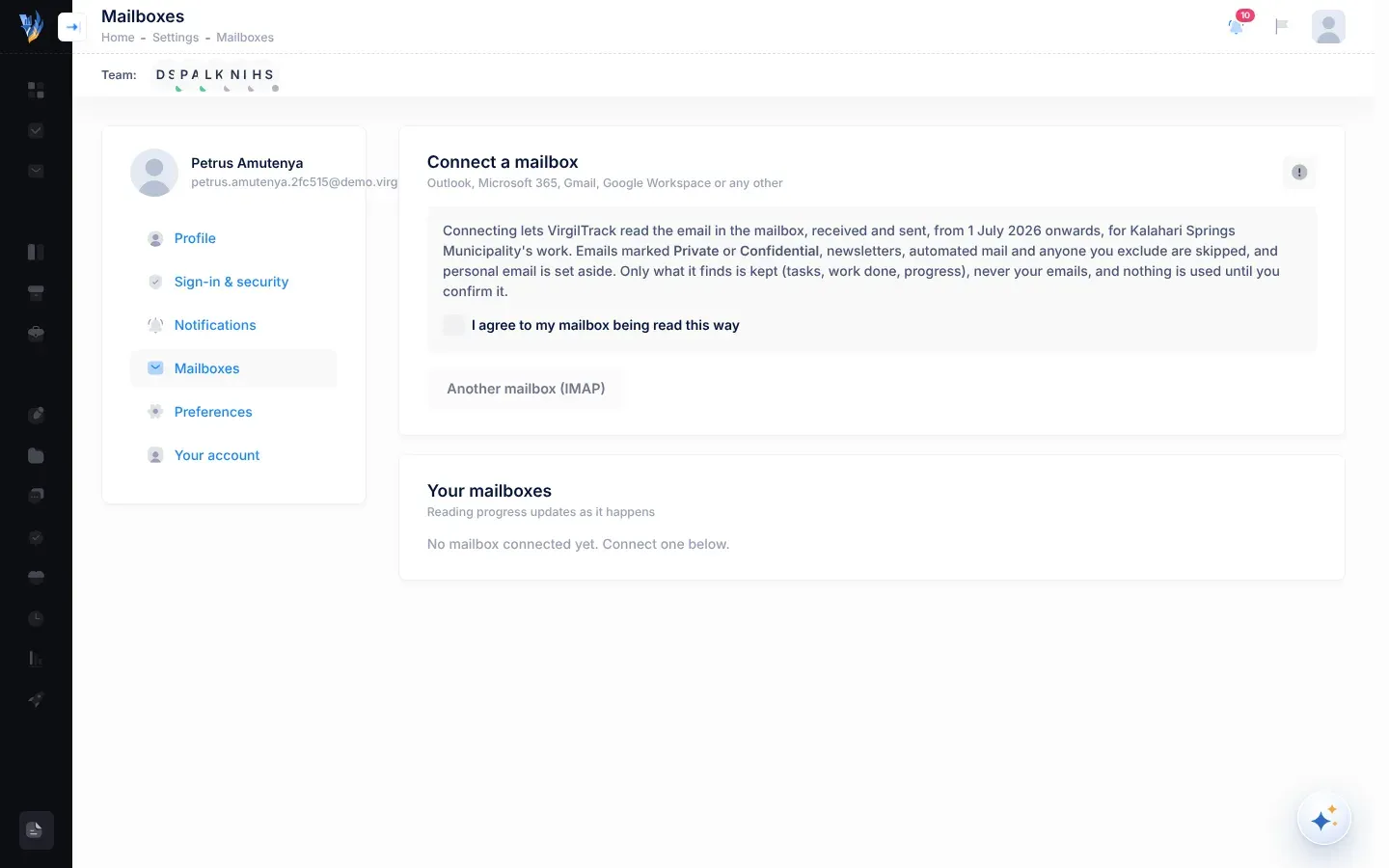
When you connect your mailbox, VirgilTrack finds the work in your email: tasks you handed out or were given, work you did, and progress on your organisation’s plans. You then confirm what it found on From your email. See Tasks from your email.
What VirgilTrack reads, and what it keeps
Section titled “What VirgilTrack reads, and what it keeps”- It reads the email you receive and send, from the start of your organisation’s financial year (shown on the page), and then new email as it arrives.
- It skips emails marked Private or Confidential, newsletters, automated mail, and anyone you exclude. Personal email is set aside.
- It keeps only what it finds (tasks, work done and progress), never your emails.
- Nothing is used until you confirm it.
To read it on the page, select the information button at the top of Connect a mailbox (How it works).
Connect a mailbox
Section titled “Connect a mailbox”-
Open Settings, then Mailboxes.
-
Read what VirgilTrack will read, in the grey box under Connect a mailbox.
-
Tick I agree to my mailbox being read this way.
The connect buttons only work once you have ticked it.
-
Choose your kind of mailbox, and follow the steps for it below.
-
Select Outlook or Microsoft 365, or Gmail or Google Workspace.
-
Sign in to your mailbox on the page that opens, and allow VirgilTrack to read it.
You come back to Mailboxes, with a message such as “petrus@example.com is connected.”
These two buttons only appear when VirgilTrack has been set up to connect to Microsoft or Google mailboxes. If you don’t see them, use Another mailbox (IMAP).
Use this for Yahoo, iCloud, Zoho, AOL, your organisation’s own mail server and most others. For Outlook.com and Hotmail, use the Microsoft button.
Most providers need an app password rather than your normal password. You make one in your email account’s security settings.
-
Select Another mailbox (IMAP).
-
In Provider, choose your provider. VirgilTrack fills in Mail server and Port for Yahoo Mail, iCloud Mail, Zoho Mail, AOL Mail and Gmail (with an app password). For My organisation’s own mail server, ask your IT staff for the server and port.
-
Fill in Email address.
-
Check Mail server and Port. The port is 993 unless you change it.
-
If you sign in with something other than your email address, fill in Username (if not the address).
-
Fill in App password.
-
Select Test and connect.
VirgilTrack checks that it can sign in and open your inbox and sent mail. Then it shows, for example, “… is connected. VirgilTrack is reading it from 1 July 2026: watch the progress below.”
Follow the reading
Section titled “Follow the reading”Under Your mailboxes, each mailbox shows its kind (Microsoft, Google or IMAP) and its address.
- While VirgilTrack catches up on the year, you see “Reading your email: now at …”, how many emails it has read so far, and a progress bar. This can take a while.
- When it has caught up, you see, for example, “Up to date: 2,340 emails read since 1 July 2026. Checked 2 min ago.” From then on, new email is read every few minutes.
- “Found so far:” says how many tasks, pieces of work and progress notes are waiting. Select Check them to go to From your email.
You can leave the page: the reading carries on, and you get a notification when it has caught up.
Choose what VirgilTrack does with clear tasks
Section titled “Choose what VirgilTrack does with clear tasks”Create clear new tasks automatically is off at first, so VirgilTrack asks you about every task it finds.
Switch it on to let VirgilTrack create the tasks it finds from then on straight away, when all of these are true:
- you asked a colleague to do it,
- VirgilTrack is sure it’s a real task (it would show as Clear),
- it knows who the task is for and which initiative it belongs to,
- it isn’t due before this month, and the email doesn’t show it was already done.
Everything else still waits for you on From your email. The colleague is told about a task created this way, just as if you had delegated it.
Never read emails from some senders
Section titled “Never read emails from some senders”In Never read emails from, type the people or domains to skip, separated by commas, for example “family@example.com, mybank.com”. Click away from the box to save it. VirgilTrack confirms: “Saved: emails from those senders are never read for …”.
Reconnect a mailbox
Section titled “Reconnect a mailbox”If your password changed or access was removed, the mailbox shows the problem in red and a Reconnect button. You also get a notification, Reconnect your mailbox.
- For a Microsoft or Google mailbox, select Reconnect and sign in again.
- For an IMAP mailbox, select Reconnect. The form opens with your details filled in. Enter your app password again, and select Test and connect.
VirgilTrack carries on from where it stopped, so email that arrived in between is still read.
Disconnect a mailbox
Section titled “Disconnect a mailbox”- Open Settings, then Mailboxes.
- Select Disconnect beside the mailbox.
- Select Disconnect to confirm, or Keep it to change your mind.
VirgilTrack stops reading the mailbox. Tasks already created and notes you kept stay. Everything still waiting for your check is removed.
If something goes wrong
Section titled “If something goes wrong”| What you see | Why | What to do |
|---|---|---|
| The connect buttons are grey. | You haven’t ticked I agree to my mailbox being read this way. | Tick it. |
| “Fill in the email address, the mail server and the app password.” | Something is missing in the IMAP form. | Fill in all three. |
| “Couldn’t connect:” and a reason, after Test and connect | VirgilTrack couldn’t sign in to the mailbox, often because of a wrong or normal (not app) password. | Make an app password in your email account and try again. |
| “Couldn’t connect the mailbox:” and a reason, after signing in to Microsoft or Google | The sign-in worked, but VirgilTrack couldn’t finish connecting. | Select the button for your mailbox again, and sign in again. |
| “Connecting was cancelled.” | You stopped the sign-in at Microsoft or Google. | Start again and allow access. |
| “The sign-in took too long. Please try again.” | More than 15 minutes passed during the sign-in. | Start again. |
| “The sign-in didn’t match your account. Please try again.” | You started the sign-in while signed in to VirgilTrack as someone else. | Sign in to VirgilTrack as yourself and try again. |
| “Connecting this kind of mailbox isn’t set up yet.” | VirgilTrack isn’t set up for that provider. | Use Another mailbox (IMAP). |
| “The AI service isn’t answering; reading continues shortly.” | VirgilTrack’s AI is busy or unavailable. | Nothing: reading carries on by itself. |