

Settings
Hierdie inhoud is nog nie in jou taal beskikbaar nie.
Settings is where you look after your own account: your profile, how VirgilTrack contacts you, your mailbox and your time zone. The CEO and administrators also use it to run the organisation: its people’s roles and who reports to whom.
Open your settings
Section titled “Open your settings”- Select your picture in the top-right corner of the screen.
- Select Settings.
Settings opens at Profile. The list on the left, under your name and email address, shows the sections. Select one to open it.
Settings has eight sections. Everyone has six of them; the CEO and administrators also have Organisation and Roles & hierarchy. Four sections are explained in this chapter. Profile, Sign-in & security and Preferences are explained in Getting started, and Mailboxes in Tasks.
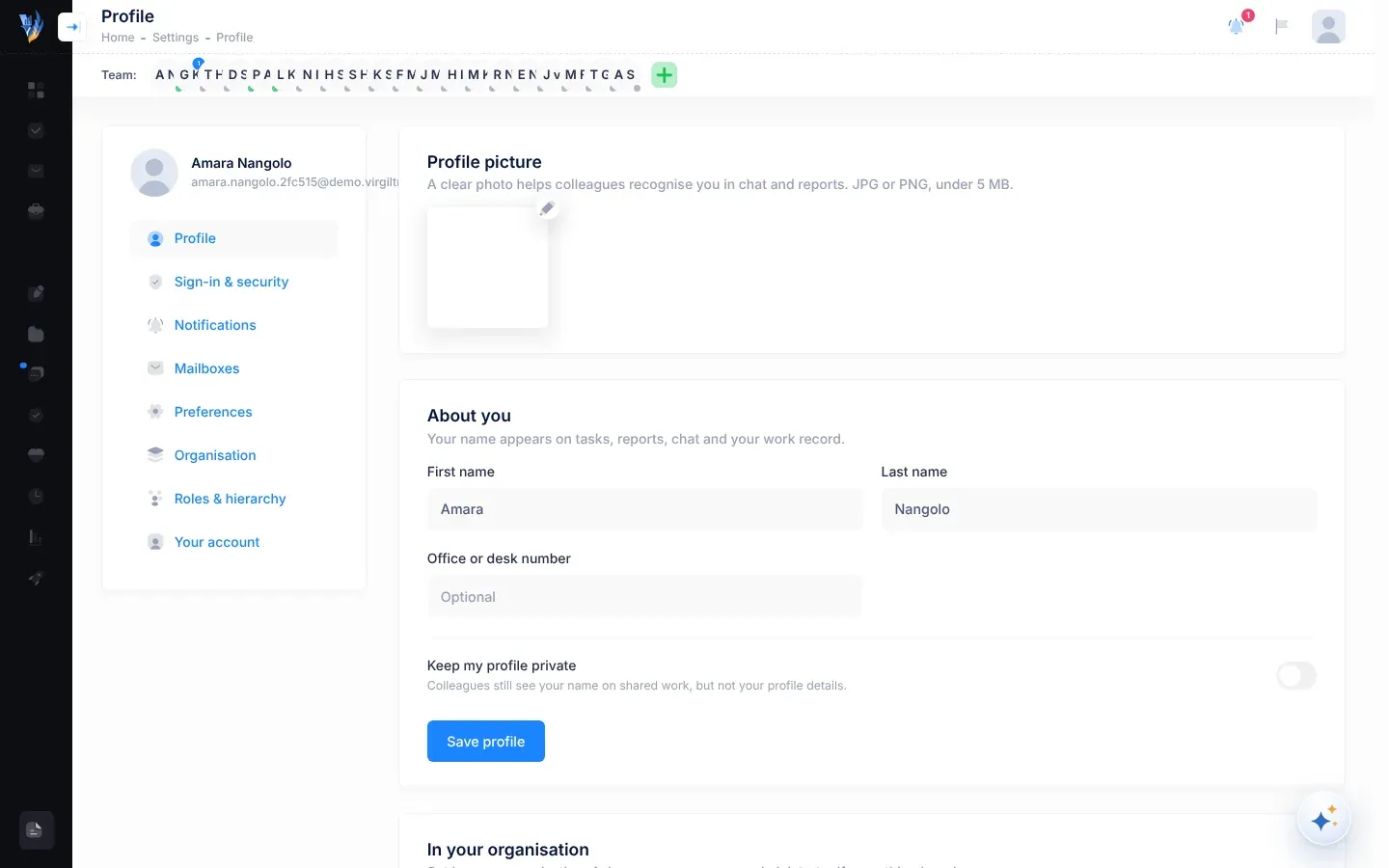
The sections
Section titled “The sections”| Section | What you do there | Who sees it | See |
|---|---|---|---|
| Profile | Change your photo, name and office number, and keep your profile private if you want to. | Everyone | Your profile, in Getting started |
| Sign-in & security | Change your sign-in email, password and mobile number, and sign out on other devices. | Everyone | Sign-in and security, in Getting started |
| Notifications | Choose which messages reach you by email, text or phone call, and test them. | Everyone | Choose your notifications |
| Mailboxes | Connect your work mailbox so the work in your email becomes trackable. | Everyone | Connect your mailbox, in Tasks |
| Preferences | Set your time zone, used for quiet hours for texts and calls, and for Virgil Copilot’s clock. | Everyone | Set your time zone, in Getting started |
| Organisation | See your organisation at a glance and open the tools for running it. | CEO and administrators | Your organisation’s settings |
| Roles & hierarchy | Set who reports to whom, and each person’s role and department. | CEO and administrators | Reporting lines and roles |
| Your account | Open your work record, or ask to close your account. | Everyone | Your work record and leaving |
If you open the address of a section you can’t use, Settings opens Profile instead.
For the CEO and administrators
Section titled “For the CEO and administrators”Wie kan dit gebruik:HUBAdministrateur
Besides the Organisation and Roles & hierarchy sections, you have:
- Roles & permissions and Reporting hierarchy in the menu under your picture. They open the Role Management page and the Roles & hierarchy section.
- A green plus button, Invite a team member, in the Team: bar under the header.
In this chapter
Section titled “In this chapter”- Choose your notifications: which messages reach you by email, text or call, quiet hours, and testing.
- Invite team members: for the CEO and administrators: invite someone to join your organisation.
- Your organisation’s settings: for the CEO and administrators: the Organisation section, and which tool to use for roles.
- Reporting lines and roles: for the CEO and administrators: drag people onto their manager and set their role, department and managed departments.
- Role Management: for the CEO and administrators: change many people’s roles and department managers at once.
- Your work record and leaving: your work record, and asking to close your account.
In other chapters:
- Your profile and sign-in details: the Profile, Sign-in & security and Preferences sections.
- Connect your mailbox: the Mailboxes section.