

Change the CEO or a department manager
Hierdie inhoud is nog nie in jou taal beskikbaar nie.
When an organisation gets a new CEO or a new department manager, make the change from the organisation’s page. VirgilTrack moves the outgoing person’s work to the right people in one step, updates roles and reporting lines, and tells everyone involved.
Before you start
Section titled “Before you start”- Find out who the new leader is, and whether they already have a VirgilTrack account in this organisation.
- Decide what happens to the person they replace: do they leave, or stay in another role?
- Decide who should take over the outgoing person’s work. If you don’t choose, VirgilTrack gives it to the new leader.
Change the CEO
Section titled “Change the CEO”-
Open Organizations and select the organisation.
-
On the Leadership tab, select Change the CEO (or Appoint a CEO if there is none).
The Change the CEO panel opens. You can also select Make CEO beside someone on the People tab; they are then already chosen.
-
Under 1. Who is the new CEO?, choose one:
- Someone already in the organisation: type in Search people… and select the person. People who have left are marked “inactive (will be reactivated)”.
- Someone new: type their first name, last name and email. A phone number is optional.
-
Under 2. What happens to …?, choose what happens to the current CEO:
- Leaves the organisation: their account is deactivated; their record is kept.
- Stays as a department manager: choose the department in In which department?. You must choose one.
- Stays as staff: you can choose a department in In which department?.
-
Read what the current CEO holds, for example “2 open tasks, 1 initiative, 6 direct reports”. All of it is handed over in one step.
-
In Who takes over their work?, keep The new CEO or choose someone else.
-
If the new CEO managed departments, step 3 asks who manages them now. For each department, choose a person or Leave vacant for now.
-
Under Tell people, choose who is told. See Who is told below.
-
Select Make the change.
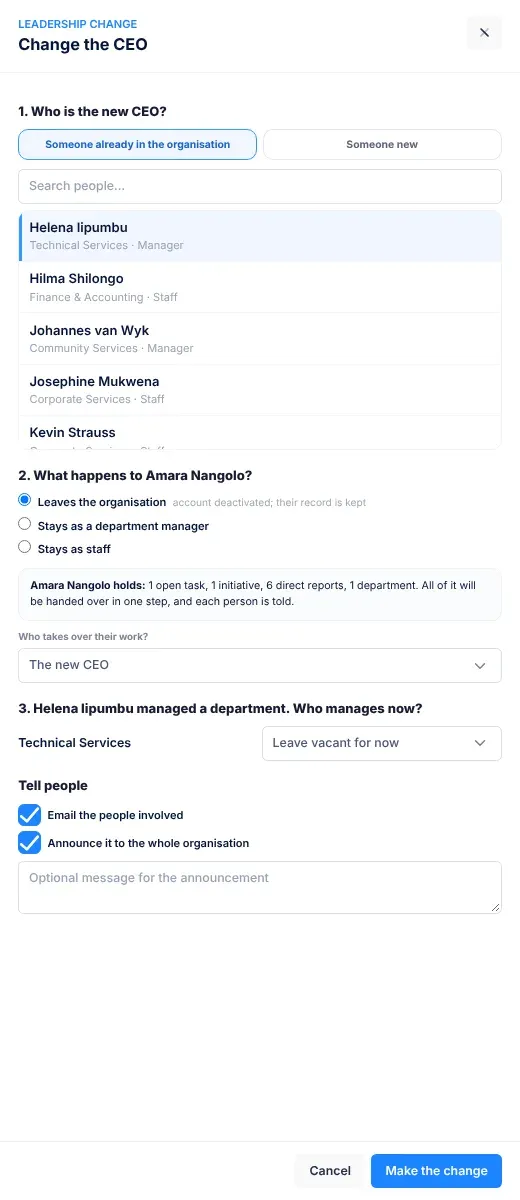
If the organisation has no CEO, step 2 is replaced by “The CEO role is vacant: the new CEO simply takes it, and people without a manager will report to them.”
What happens next
Section titled “What happens next”- The new CEO gets the CEO role, at the top of the organisation, reporting to nobody. If they had left, they’re reactivated.
- If the new CEO managed departments, each one gets the manager you chose, or has no manager. The new CEO’s team in that department now reports to the replacement.
- Everything the outgoing CEO held goes to the person you chose in Who takes over their work?. The people who reported to them now report to the new CEO.
- The outgoing CEO leaves (their account is deactivated), or moves into the role you chose, reporting to the new CEO.
- Anyone in the organisation left without a manager now reports to the new CEO.
- The change is recorded on the History tab, for example “Helena Iipumbu became CEO, replacing Amara Nangolo (left).”
- A message confirms it, for example “Helena Iipumbu is now CEO; handed over 2 open tasks, 6 direct reports.”
Appoint or change a department manager
Section titled “Appoint or change a department manager”-
Open Organizations and select the organisation.
-
On the Leadership tab, find the department and select Change manager (or Appoint manager if it has none).
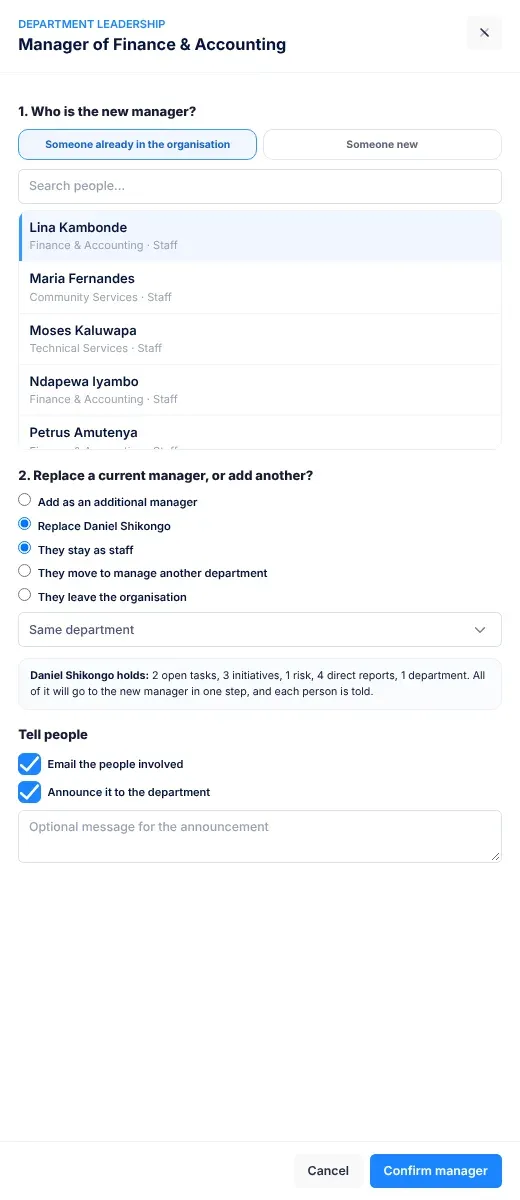
A panel called Manager of … opens.
-
Under 1. Who is the new manager?, choose Someone already in the organisation and select the person, or choose Someone new and type their first name, last name and email.
-
If the department already has a manager, step 2 asks “Replace a current manager, or add another?”. Choose Replace … (the current manager) or Add as an additional manager.
If the department has exactly one manager, Replace … is already chosen.
-
If you’re replacing someone, choose what happens to them:
- They stay as staff.
- They move to manage another department.
- They leave the organisation: their account is deactivated.
For the first two, a list below starts at Same department. Choose another department if they’re moving.
-
Read what the outgoing manager holds. All of it will go to the new manager in one step.
-
Under Tell people, choose who is told.
-
Select Confirm manager.
What happens next
Section titled “What happens next”- The new manager gets the Manager role, joins the department and reports to the CEO. If they had left, they’re reactivated.
- If you replaced someone, their open work, the people who reported to them and any other departments they managed go to the new manager.
- If you added another manager, the department now has more than one. They’re all listed on the Leadership tab.
- A replaced manager who stays in the department now reports to the new manager. One who moves to another department reports to the CEO.
- The change is recorded on the History tab, for example “Lina Kambonde now manages Finance & Accounting, replacing Daniel Shikongo.” or “… (additional manager).”
Who is told
Section titled “Who is told”The Tell people section has these choices. Both boxes are ticked to start with.
| Choice | Who is told, and how |
|---|---|
| Email the people involved | The new CEO gets “You are now the CEO of … in VirgilTrack”, with Open the CEO dashboard. A new manager gets “You now manage …”, with Open your dashboard. An outgoing CEO who stays in the organisation gets “… is taking over as CEO”. These come by email and in VirgilTrack. A manager you replace gets no message of their own. An outgoing CEO who leaves isn’t told, because their account is closed first. |
| Announce it to the whole organisation (CEO change) | Everyone else in the organisation gets “… is the new CEO of …”, by email and in VirgilTrack. |
| Announce it to the department (manager change) | Everyone else in the department gets “… now manages …”, by email and in VirgilTrack. |
| Optional message for the announcement | Your words are added to the end of the announcement. |
People who take over tasks are also told about each task they receive.
If you chose Someone new, VirgilTrack creates their account and emails them, whatever you tick: “You’ve been invited to … on VirgilTrack”, with a Set my password button. They choose a password from that email. See Accept an invitation.
People whose role changed see it the next time they sign in. VirgilTrack ends their current sign-ins so that they do, though this can take a little while.
If something goes wrong
Section titled “If something goes wrong”The panel shows problems in red, above the Cancel button.
| What you see | Why, and what to do |
|---|---|
| Make the change or Confirm manager stays greyed out | Something is missing. Choose a person, or fill in first name, last name and an email address. For a CEO who stays as a department manager, choose In which department?. |
| “That person is already the CEO.” | You chose the current CEO. Choose someone else. |
| “That person already manages this department.” | Choose Replace … instead of Add as an additional manager, or choose someone else. |
| “… belongs to another organisation. Move them from the Users page if they’re changing organisation.” | The email belongs to someone in another organisation. Move them first. See Help someone with their account. |
| “Enter the person’s first name, last name and email.” | Fill in all three for Someone new. |
| “The change couldn’t be completed, and nothing was changed. …” | Something stopped the change. Read the reason, then try again. |
If the email you typed for Someone new already belongs to someone in this organisation, VirgilTrack uses that person, and reactivates them if they had left. If it belongs to someone who has left another organisation, VirgilTrack brings that person into this one.
Related
Section titled “Related”- Organisations
- When people join or leave
- Settings, where a CEO sees the organisation’s roles and reporting lines