

The Manager Dashboard
Hierdie inhoud is nog nie in jou taal beskikbaar nie.
The Manager Dashboard shows how your department is doing with its risks. Managers and employees both use it. It answers three questions: how much risk is left in your department, what reviews are coming up, and where your department’s risks sit on the heat map.
Open the Manager Dashboard
Section titled “Open the Manager Dashboard”-
Select Dashboard in the menu on the left.
The Manager Dashboard opens.
The dashboard at a glance
Section titled “The dashboard at a glance”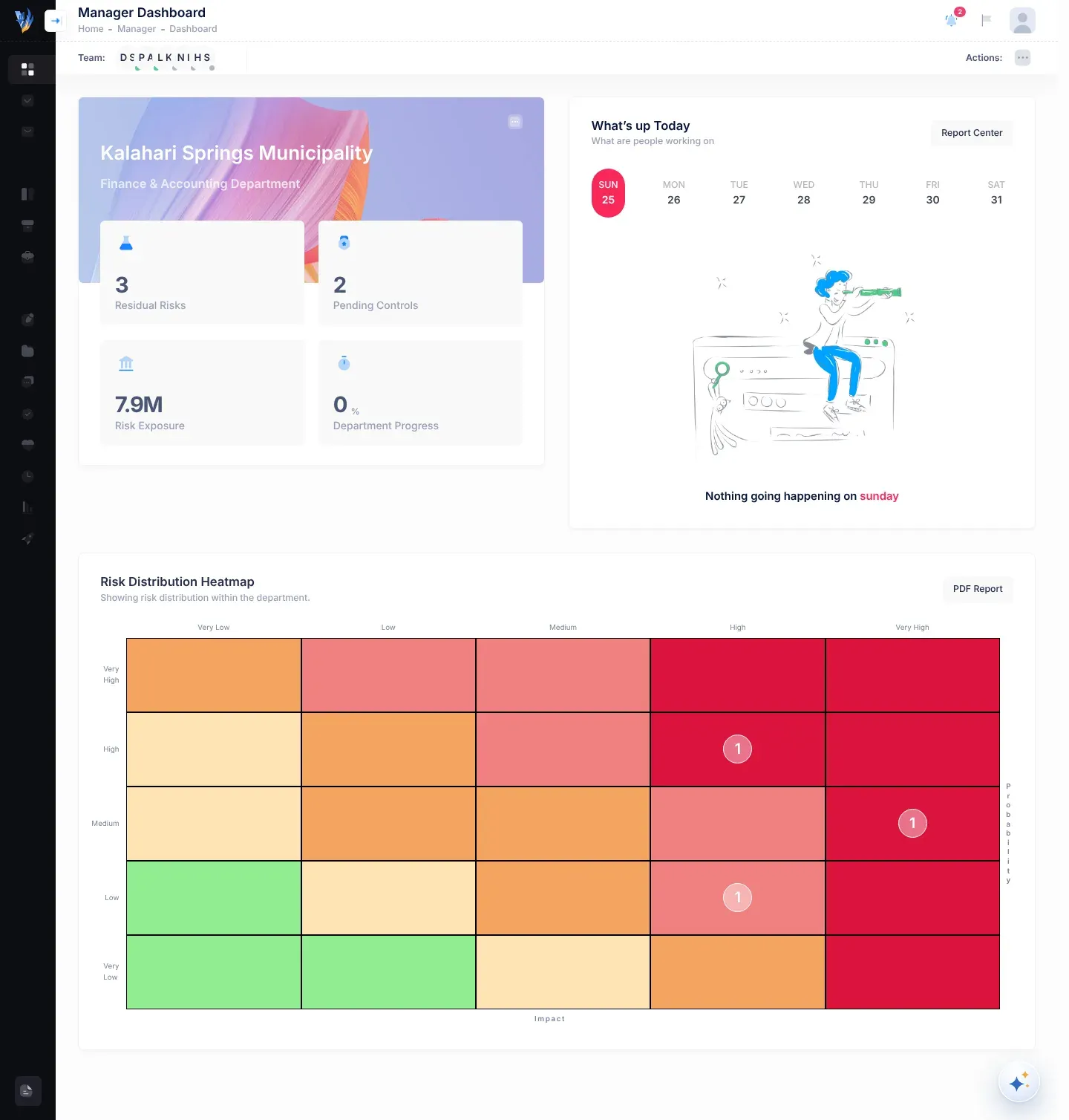
The dashboard has three cards:
- Your department card, at the top left, with four figures about your department’s risks.
- What’s up Today, at the top right, with the risk reviews and control reviews on each day of the week.
- Risk Distribution Heatmap, across the bottom, which places your department’s open risks on a grid.
Your department card
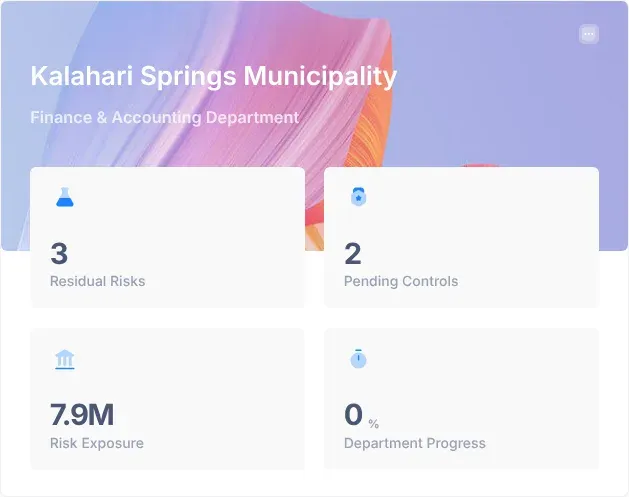
Section titled “Your department card”The top of the card shows your organisation’s name and, under it, your department’s name. VirgilTrack adds the word “Department” to the name if it isn’t there already. Select the names to open your department’s Risk Register.
Under the names are four figures. They always cover your whole department, whether you are a manager or an employee.
| Figure | What it shows |
|---|---|
| Residual Risks | How many of your department’s risks haven’t been marked as mitigated yet, whatever their status. Archived risks, and risks moved to Mitigated on the Kanban board, still count. |
| Pending Controls | How many of your department’s controls haven’t been marked as implemented yet. |
| Risk Exposure | The total Financial exposure of the same risks: your department’s risks that haven’t been marked as mitigated. |
| Department Progress | Of the risks recorded in your department this calendar year, the percentage that have been marked as mitigated, as a whole number rounded down. |
A residual risk is a risk that is still there: it hasn’t been dealt with yet. Here, “marked as mitigated” means someone selected Mark as mitigated on the risk’s page or in the risk register. A control is an action that reduces a risk. See Risk controls and the Glossary.
Risk Exposure is shortened for large amounts: “K” means thousands and “M” means millions. For example, 250.5K is about N$ 250,500.
Quick Actions
Section titled “Quick Actions”The small square button at the top right of the department card opens Quick Actions:
- View opens your department’s Risk Register.
- Get Report opens the Generate Reports page, where you can create risk reports. See Make a risk report.
What’s up Today
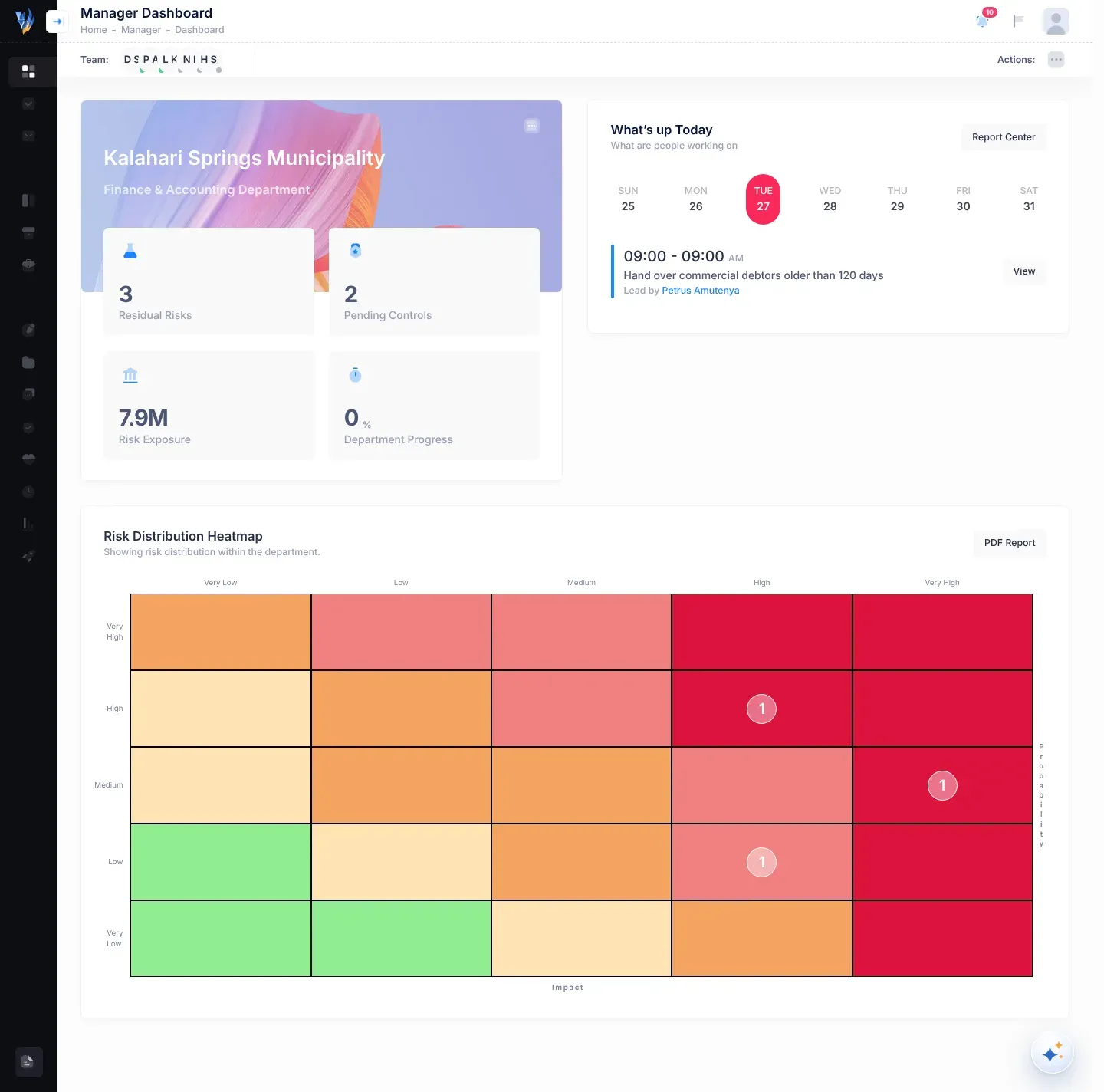
Section titled “What’s up Today”What’s up Today lists risk reviews and control reviews by day of the week. Today’s day is selected when the dashboard opens; select another day to see its list.
- Managers see the reviews and controls of their whole department.
- Employees see the controls they are responsible for or created, and the risk reviews scheduled for them.
See The What’s up Today card for what each entry shows.
Risk Distribution Heatmap
Section titled “Risk Distribution Heatmap”The heat map places your department’s open risks on a grid of five probability levels by five impact levels. The redder a cell, the more serious that combination is. A number in a cell shows how many risks are counted there.
Under the title it says “Showing risk distribution within the department.” PDF Report opens the Generate Reports page.
See The risk heat map to learn how to read it. At present the heat map counts risks in the wrong rows, so read What the numbers mean before you rely on it.
More actions
Section titled “More actions”The bar under the header shows Team: with the people in your department, and Actions: at the other end. See The team bar.
Select the square button next to Actions: to open More Actions, then select Generate Reports to open the reports page.
What managers and employees see
Section titled “What managers and employees see”| Card | Manager | Employee |
|---|---|---|
| Department card and its four figures | Your department | Your department |
| What’s up Today | Your department’s reviews and controls | Your own controls and the reviews scheduled for you |
| Risk Distribution Heatmap | Your department’s open risks | Your department’s open risks |
How the figures change
Section titled “How the figures change”The figures follow what you do with your risks and controls elsewhere in VirgilTrack:
- When someone marks a risk as mitigated with Mark as mitigated, on the risk’s page or in the risk register, Residual Risks and Risk Exposure go down. If the risk was recorded this year, Department Progress goes up. See A risk’s page.
- Archiving a risk, or moving it to Mitigated on the Kanban board, doesn’t change Residual Risks, Risk Exposure or Department Progress.
- When someone marks a control as implemented with Mark as implemented, Pending Controls goes down. See Risk controls.
- Risk Exposure adds up the Financial exposure entered for each risk. Risks with no amount add nothing.
The dashboard works out its figures when it opens. To see changes you’ve just made, reload the page in your browser.
If something goes wrong
Section titled “If something goes wrong”| What you see | Why | What to do |
|---|---|---|
| Risk Exposure shows 0 | No Financial exposure has been entered for your department’s open risks. | Enter a Financial exposure amount when you add, assess or edit a risk. See Add a risk. |
| Department Progress shows 0 % | No risks were recorded in your department this year, or none of this year’s risks is mitigated yet. | Nothing is wrong. The figure rises as this year’s risks are mitigated. |
| A figure hasn’t changed after you updated a risk | The dashboard worked out its figures before your change. | Reload the page in your browser. |
| A risk you think is finished still counts in Residual Risks and Risk Exposure | It was archived, or moved to Mitigated on the Kanban board, but nobody selected Mark as mitigated. | Open the risk’s page and select Mark as mitigated. The button only works once all the risk’s controls are implemented. See A risk’s page. |
| What’s up Today is empty for every day | There are no reviews or controls for you (or, for managers, your department) yet. | See The What’s up Today card. |