

Help someone with their account
Hierdie inhoud is nog nie in jou taal beskikbaar nie.
When someone calls for help with their account, open their Manage panel. From there you can sort out most sign-in problems, correct their profile and move them to another organisation. Most of your changes are recorded on their organisation’s History tab, labelled support or move.
Open the Manage panel
Section titled “Open the Manage panel”- Open Users from the menu on the left.
- Type their name or email in Search name or email…. If they have left their organisation, choose All or Left in the status filters.
- Select Manage on their row.
- Open Organizations and select their organisation.
- Select the People tab and find them.
- Select Manage on their row.
The Support panel opens with their name, email and organisation at the top, and three tabs: Profile, Sign-in and Organisation. It opens on Profile. To close it, select the close button (✕) at the top.
Sort out a sign-in problem
Section titled “Sort out a sign-in problem”Select the Sign-in tab. Four badges show the state of their account at a glance.
| Badge | What it tells you |
|---|---|
| Email confirmed or Email not confirmed | Whether they’ve confirmed their email address. They can’t sign in until they have. |
| Has a password or Never set a password | Whether they’ve chosen a password yet. |
| Not locked out or Locked out (failed sign-ins) | Whether their account is locked. An account you locked on the Users page shows as Locked out (failed sign-ins) too. |
| Active or Deactivated | Whether their account is open. Deactivated means they have left their organisation. |
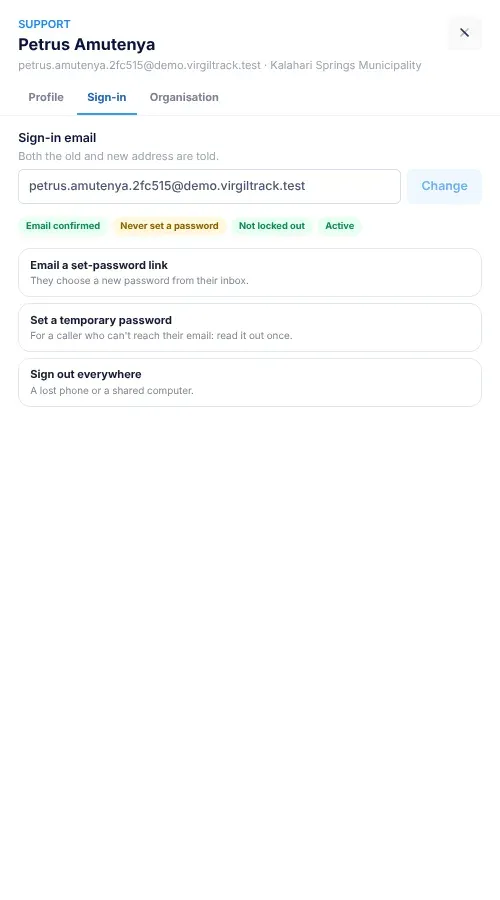
Then choose the action that fits.
| The caller says | Select | What happens |
|---|---|---|
| “I forgot my password.” | Email a set-password link | They get an email, “Set your VirgilTrack password”, with a Set my password button. The link works once. You see “A set-password link was emailed to …”. |
| “I can’t get into my email, and I need to sign in now.” | Set a temporary password | VirgilTrack makes a password and shows it to you once. See Give a temporary password. |
| “The verification code never arrives.” | Confirm their email | Their email counts as confirmed, and they can sign in. You see “Email confirmed: they can sign in now.” Only shown while their email isn’t confirmed. |
| “It says my account was locked out.” | Clear the lockout | They can try again straight away. You see “Lockout cleared: they can try again now.” Only shown while they’re locked out, and not for someone who has left. It also removes a lock you set on the Users page. |
| “I lost my phone” or “I signed in on a shared computer.” | Sign out everywhere | Every device signed in as them is signed out. You see “They’ll be signed out everywhere within a few minutes.” |
Give a temporary password
Section titled “Give a temporary password”Use this for a caller who can’t receive email.
-
On the Sign-in tab, select Set a temporary password.
The panel shows “Temporary password: shown once, read it out now”, and the password.
-
Read the password out to the caller, character by character. It is two groups of five letters and numbers joined by a dash, then # and two digits. It never uses characters that are easy to confuse, such as O and 0, or l and 1.
-
Ask them to sign in with it, then change it straight away in their settings. See Change your password.
-
Select Done, hide it.
You can’t see the password again once it’s hidden. If they lose it, set a new one.
Setting a temporary password also clears any lockout. VirgilTrack emails them “Your VirgilTrack password was reset”, so they know it happened. It isn’t available for a deactivated account: reactivate them first.
Change someone’s sign-in email
Section titled “Change someone’s sign-in email”- On the Sign-in tab, under Sign-in email, type the new address.
- Select Change.
“Sign-in email changed to …; both addresses were told.” confirms it.
- The old address gets an email, “Your VirgilTrack sign-in email was changed”. It asks them to get in touch straight away if they didn’t ask for this.
- The new address gets an email saying to sign in with it from now on. Their password doesn’t change.
- The new address counts as confirmed.
- VirgilTrack ends their current sign-ins (this can take a little while), and they sign in again with the new address.
Correct someone’s profile
Section titled “Correct someone’s profile”Select the Profile tab.
-
Change what you need: First name, Last name, Phone (tick Verified if the number has been checked), Job title, Department or Reports to.
Job title lists the job titles set up for their organisation. Reports to can’t be changed for the CEO.
-
Select Save profile.
“Saved: …” lists what changed, for example “Saved: department, manager.” If you changed their department or manager, VirgilTrack also rebuilds the organisation’s weekly report chain.
The Profile tab doesn’t change roles. “To make them CEO or a manager, use the organisation’s Leadership tab, so their work is handed over properly.” See Change the CEO or a department manager.
If they have left their organisation, the tab says “They’ve left their organisation. Reactivate or move them to edit their profile.”
Move someone to another organisation
Section titled “Move someone to another organisation”When someone changes employer, for example from one council to another, move them. Their open work stays with their old organisation, handed to a colleague, and their history stays there too. They join the new organisation as staff.
- Open their Manage panel and select the Organisation tab.
- In Move to, choose the organisation they’re joining.
- Choose their Department there.
- In Reports to there, keep Department manager, else CEO, or choose their new manager.
- In Who takes over their open work here?, keep Their manager or choose a colleague in the old organisation. This isn’t shown for someone who has already left.
- Select Move them.
“… now belongs to …” confirms it.
What happens next
Section titled “What happens next”- Their open work in the old organisation goes to the colleague you chose, and the people who reported to them report to their old manager.
- They join the new organisation with the Employee role, in the department you chose, reporting to the person you chose. If you didn’t choose, they report to the department’s manager, or the CEO.
- They’re given one of the new organisation’s job titles. Check it on the Profile tab and change it if needed.
- They get an email, “You’ve moved to … in VirgilTrack”. Their new manager is told “… has joined your team”. The colleague taking over their work is told “You’ve taken over …’s work”, if there was work to hand over.
- Both organisations’ History tabs record the move.
You can also move someone who has left an organisation. They join the new one the same way.
If something goes wrong
Section titled “If something goes wrong”Messages appear at the bottom of the panel: green when it worked, red when it didn’t.
| What you see | Why, and what to do |
|---|---|
| “That isn’t a valid email address.” | Check the new sign-in email for typing mistakes. |
| “Another account already uses that email.” | Someone else signs in with that address. Find them on the Users page. |
| Set a temporary password is greyed out | Their account is deactivated: they have left their organisation. Use Rejoin on its People tab first, or move them. See When people join or leave. |
| “First and last name are required.” | Fill in both names on the Profile tab. |
| “Someone can’t report to themselves.” | Choose someone else in Reports to. |
| “Their manager must be in the same organisation.” | Choose a manager from their own organisation. |
| “Nothing changed.” | You selected Save profile without changing anything. You also see this if you only ticked or unticked Verified; that change is still saved. |
| “That department isn’t in the new organisation.” or “Their new manager must be in the new organisation.” | Choose the organisation again, then its department and manager. |
| “That didn’t work: …” | Something stopped the change. Read the reason, then try again. |
| They still can’t sign in, and every badge looks fine | Ask exactly what they see, and look it up in Sign in and sign out. If the Sign In page just opens again with empty boxes, their password is wrong: see Sort out a sign-in problem. An organisation’s Suspended status doesn’t stop anyone signing in. |