

Review sign-ups
Hierdie inhoud is nog nie in jou taal beskikbaar nie.
When an organisation signs up for VirgilTrack, its request waits for you on the Sign Ups page. Approving it invites everyone the organisation listed, starting with the CEO.
How you hear about a sign-up
Section titled “How you hear about a sign-up”When an organisation submits the sign-up form, VirgilTrack emails a fixed list of Virgil Finance staff: “New Sign Up on Virgiltrack”, with the organisation’s name. Other administrators don’t get this email, so check the Sign Ups page regularly. The request appears there with the status Pending.
To see what the organisation filled in, see Sign up your organisation.
The sign-ups list
Section titled “The sign-ups list”Open Sign Ups from the menu on the left. At first, the list shows only Pending sign-ups. To see others, choose All, Approved or Denied in the status list above the table.
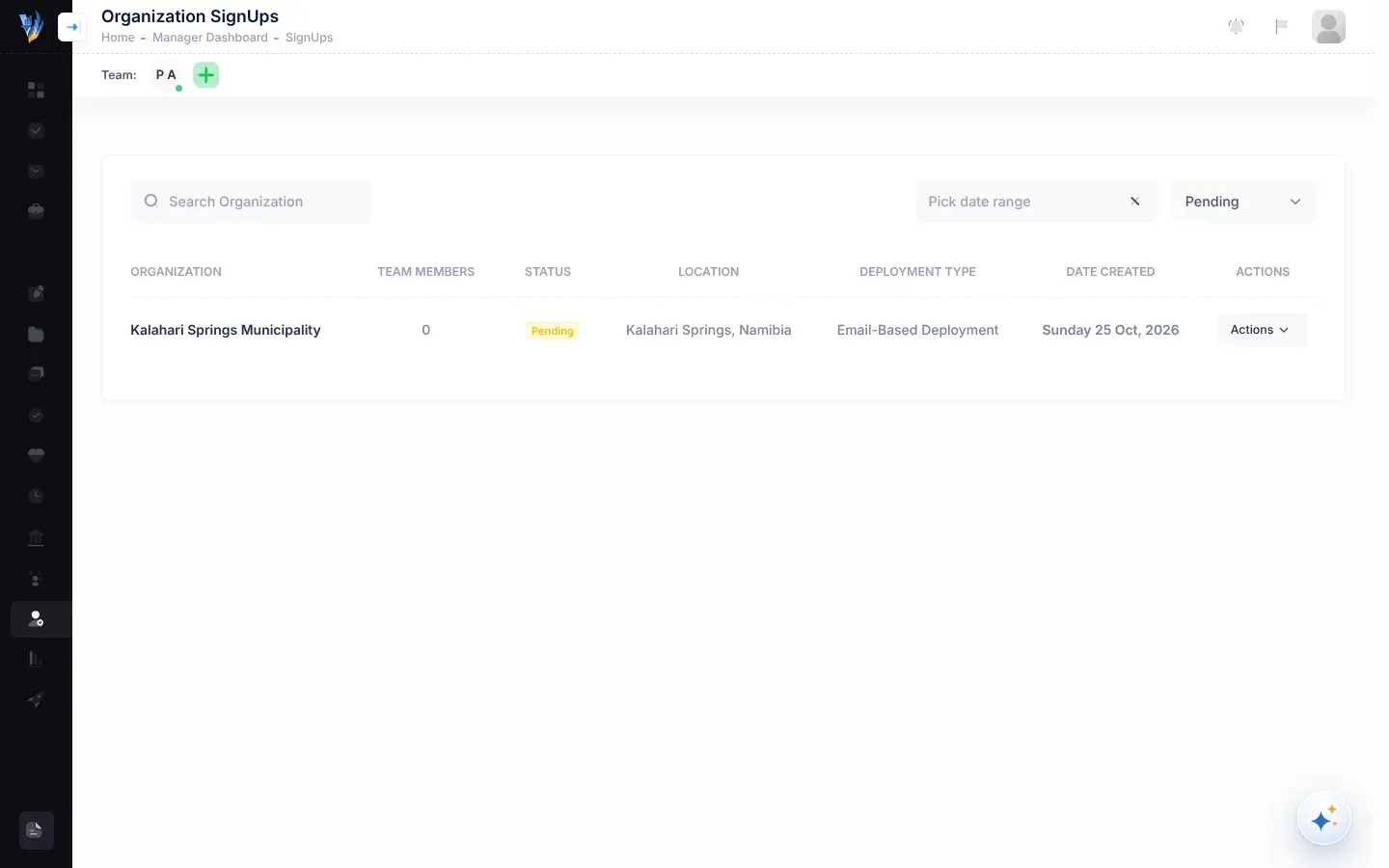
| Column | What it shows |
|---|---|
| Organization | The organisation’s name. Select it to open its sign-up details. |
| Team Members | How many people the organisation listed, including the CEO. Shown when you look at Pending sign-ups. |
| Deployments | Shown instead of Team Members for other statuses. For example, “12 / 14” means 12 of the 14 invitations have been emailed. |
| Status | Pending, Approved, Denied or Suspended. |
| Location | The organisation’s city and country. |
| Deployment Type | How the organisation’s people are invited. New sign-ups use Email-Based Deployment: everyone gets an email invitation. |
| Date Created | When the organisation signed up. |
| Actions | View opens the sign-up details. Approve (not shown for approved organisations) and Deny (not shown for approved or denied ones) are explained below. |
Suspended organisations appear under All. Restore a suspended organisation’s access from its own page, not with Approve here. See Organisations.
The sign-up details page
Section titled “The sign-up details page”Select an organisation’s name, or Actions, then View, to open its details.
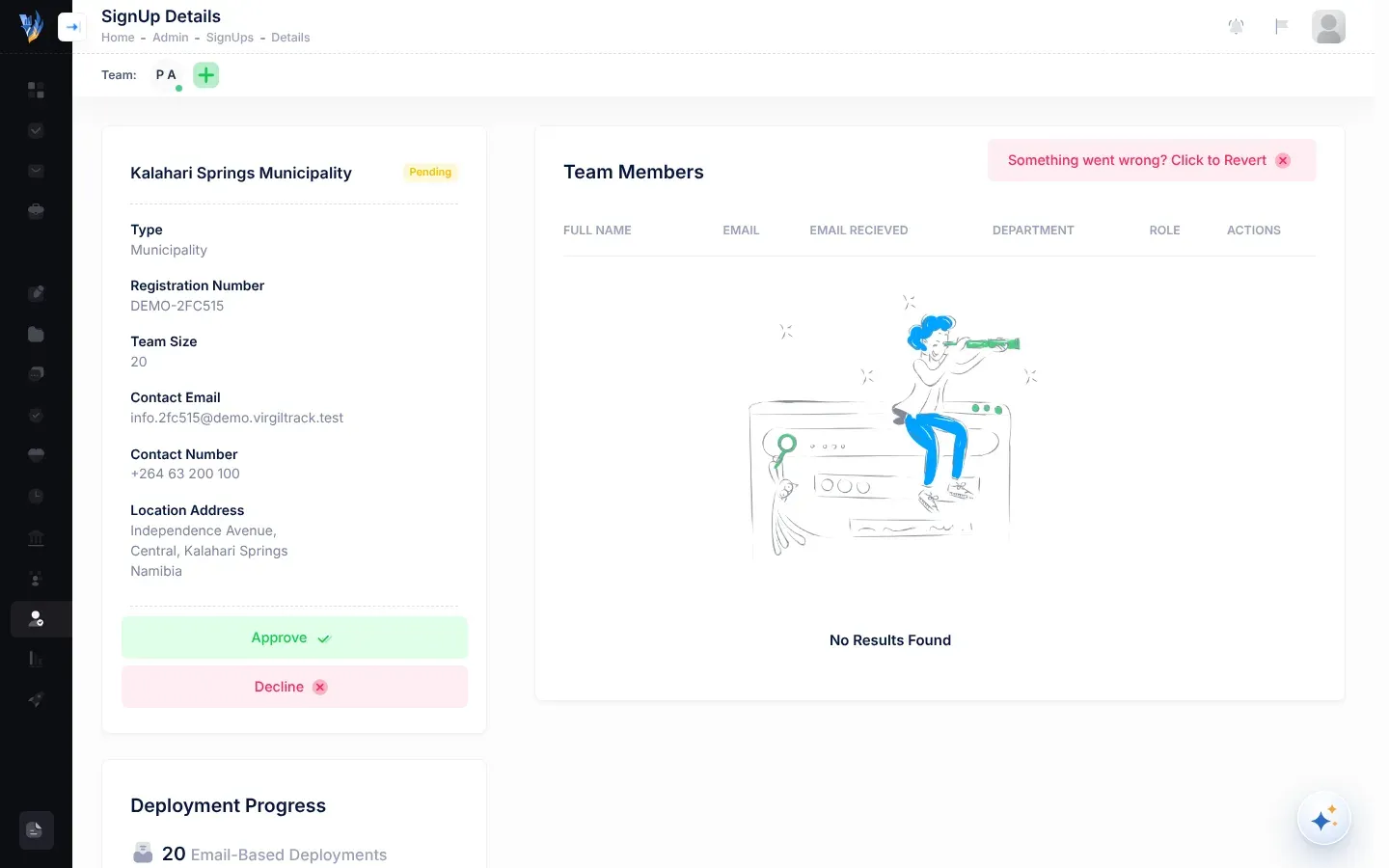
- On the left, under the organisation’s name and status, are its Type, Registration Number, Team Size, Contact Email, Contact Number and Location Address. The buttons for approving and denying are below them.
- Deployment Progress shows the team size and the deployment type.
- Team Members lists everyone the organisation will invite: Full Name, Email, Email Recieved, Department and Role. The CEO comes first, then managers, then everyone else. Role is CEO, Manager or NONE (an ordinary member of staff). Email Recieved is True once that person’s invitation has been emailed.
Before you approve
Section titled “Before you approve”Check that:
- the organisation is real and its contact details make sense;
- the CEO’s name and email address are right;
- every department has a manager, marked Manager in Role;
- the email addresses look correct. Invitations go to these addresses.
Approve a sign-up
Section titled “Approve a sign-up”-
Open Sign Ups and select the organisation’s name.
-
Check the details and the Team Members table.
-
Select Approve.
A window asks you to confirm: “All team members will receive emails with instructions on how to access the software.”
-
Select Yes, I confirm!.
A message, Deployment In Progress, appears. Then the invitations go out one after another, which can take a little while.
-
Wait for the result window, then close it.
You can also approve straight from the list, with Actions, then Approve. The details page is safer: you see who will be invited first, and it refuses to approve an organisation with nobody to invite.
What happens next
Section titled “What happens next”- The organisation’s status becomes Approved.
- Everyone in Team Members who hasn’t had an invitation yet receives an email called “Invitation to Virgiltrack”, with a Setup Account button. The CEO is invited first, then the managers, then everyone else. See Accept an invitation.
- A window tells you how it went. “All … invitations went out.” means everyone was emailed. If some failed, it says how many went out and lists who wasn’t emailed.
- The page refreshes, and Email Recieved shows True for each person emailed.
- Each person joins their department, with their role, when they set up their account. Departments appear on the organisation’s page as people join. See Organisations.
Once an organisation is approved, the details page also shows Manage organisation, which opens its page.
Resend invitations that didn’t go out
Section titled “Resend invitations that didn’t go out”If some invitations failed, the details page of an approved organisation shows Retry Failed Deployments. It stays there while anyone in Team Members still shows False in Email Recieved.
- Open the organisation’s sign-up details.
- Select Retry Failed Deployments.
- Select Yes, Retry!.
VirgilTrack emails only the people who haven’t received an invitation yet, and shows the result window again.
You can’t correct an email address in the Team Members table. If an address is wrong, invite the person again with the right address from the organisation’s People tab. See When people join or leave.
Deny a sign-up
Section titled “Deny a sign-up”- Open the organisation’s sign-up details.
- Select Decline.
- Read the warning: “When you Deny their registration, they wont receive the software…”
- Select Yes, Send Denial Email, or Cancel if you change your mind.
The status becomes Denied, and nobody is invited.
A denied organisation keeps its Approve button. If you change your mind, you can approve it straight away. To put it back to Pending without inviting anyone, use Something went wrong? Click to Revert (see below).
Start the invitations again
Section titled “Start the invitations again”Something went wrong? Click to Revert, beside the Team Members heading, puts the sign-up back to Pending and marks every invitation as not sent. Use it to send every invitation again, or to undo a denial.
-
Select Something went wrong? Click to Revert.
-
Read “When you revert, you will be able to resend sign up emails.” and select Yes, I confirm!.
The status goes back to Pending, and Email Recieved goes back to False for everyone.
-
When you’re ready, select Approve again. Everyone in Team Members is invited again, including people who were invited before.
Reverting doesn’t remove accounts that people have already set up.
If something goes wrong
Section titled “If something goes wrong”| What you see | Why, and what to do |
|---|---|
| Error: “An organization must have at least one member to send invite(s)” | The sign-up lists nobody to invite. Contact the organisation; it may need to sign up again. |
| “… is approved” and “Everyone has already been invited.” | Every invitation had already been emailed, or the sign-up lists nobody to invite. Nothing more was sent. Check the Team Members table. |
| A warning that only some invitations went out, ending “Use ‘Retry failed’ to try again.” | Some emails failed. Use Retry Failed Deployments. If the same people fail again, check their addresses with the organisation. |
| Internal Error: “Sending Email Failed: …” | One invitation couldn’t be sent. The others carry on. Retry when the email problem is fixed. |
| Invitations weren’t sent | The invitations couldn’t be sent, and the reason is shown. Check Email Recieved to see who was emailed, then use Retry Failed Deployments. If it keeps happening, report it to the VirgilTrack developers. |
| A Kalahari Springs Municipality sign-up you don’t recognise | It is a demo organisation made by a demo link. Its Registration Number starts with “DEMO-”. Leave it alone. Nobody can use it once its link expires. See Demo links. |
| Someone says they never got their invitation | Check Email Recieved. If it is True, ask them to look in spam or junk for “Invitation to Virgiltrack”. If it is False, use Retry Failed Deployments. |