

A task's page
Hierdie inhoud is nog nie in jou taal beskikbaar nie.
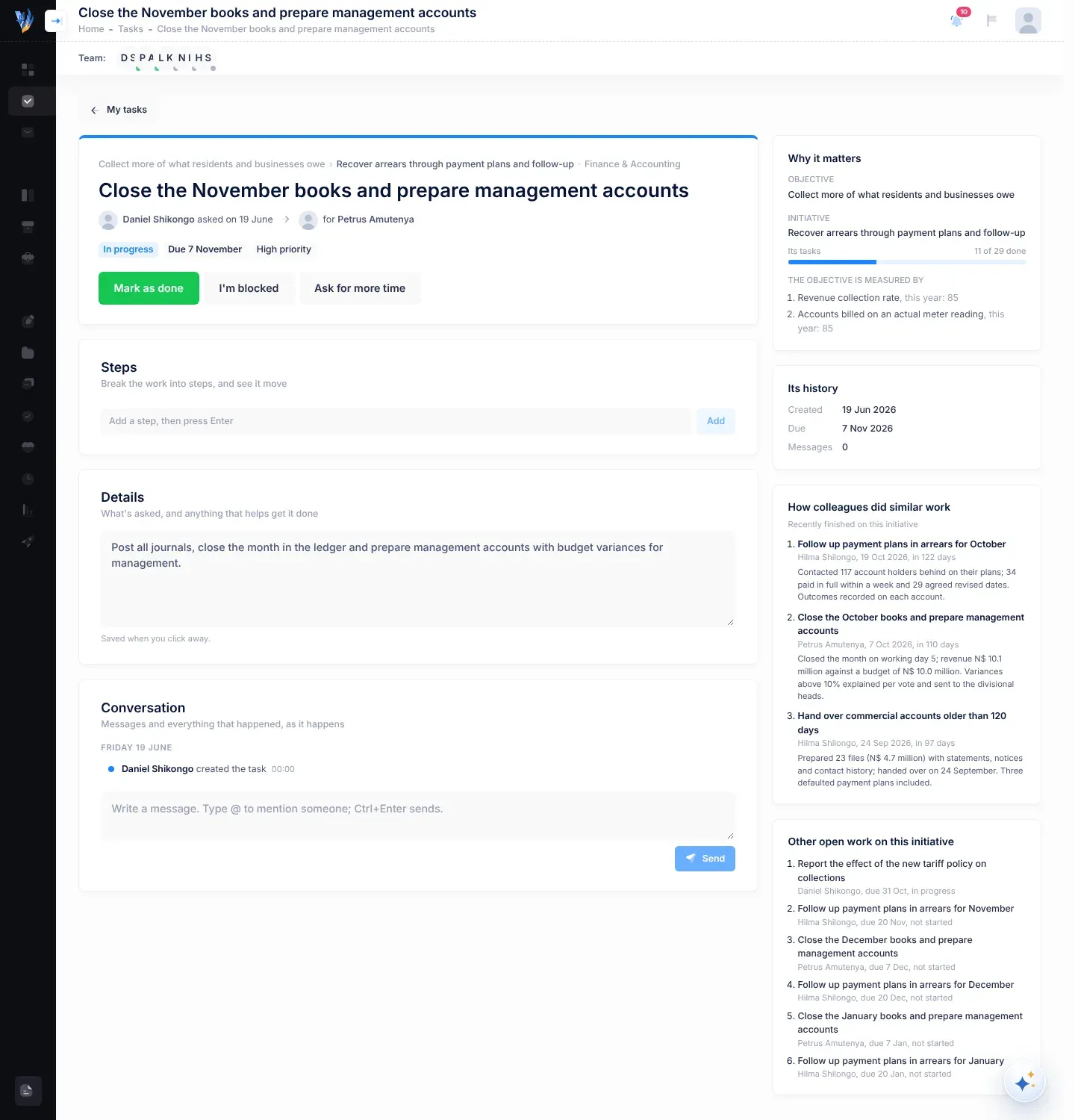
Each task has its own page. It shows why the task exists, who asked whom, the next step for you, its steps and details, and one conversation with everything that has happened.
To open a task, select it on the Tasks page, or use the link in an email or notification about it. To go back, select My tasks at the top of the page.
The brief
Section titled “The brief”The first card at the top of the page is the brief.
- Where it fits. The objective and the initiative the task serves, and the department, for example “Reduce water losses › Meter replacement programme · Technical Services”.
- The title. Leads can change it with the pencil button, Edit the title.
- Who asked whom. For example “Daniel Shikongo asked on 3 October” → “for Petrus Amutenya”. “for nobody yet” means it hasn’t been given to anyone.
- Where it came from, if it didn’t come from a person directly: From the email “…” of 12 Oct for a task found in an email, or Suggested by VirgilTrack for one that VirgilTrack’s AI wrote.
The badges
Section titled “The badges”| Badge | What it tells you |
|---|---|
| Status | Not started, In progress, Blocked, Rescheduled, Overdue or Done. See Task statuses. |
| When it’s due | For example Due Friday, in 3 days, Due today, Due tomorrow, Overdue by 2 days (in red), No due date, or Done 20 Oct. |
| Priority | Low priority, Medium priority, High priority or Critical priority. Leads see a list here, so they can change it. |
| Steps | How many steps are done, for example 2 of 5 steps. |
| Verified by … | A lead has checked the finished work. |
Banners
Section titled “Banners”A coloured banner under the badges shows anything that is waiting:
- “… asked for more time: until …”, with the reason. Leads answer it with Agree or Keep the date. Everyone else sees Waiting for an answer.
- “Blocked since …”, with what is in the way.
- “Done on …, in 6 days”, with how it was done, and the verification note if a lead verified it.
The buttons
Section titled “The buttons”Which buttons you see depends on who you are to the task and what state it is in. See Who can do what with a task.
| Button | Who sees it | When |
|---|---|---|
| Start working on it | The assignee | The task hasn’t been started. |
| I’m unblocked | The assignee | The task is blocked. |
| Mark as done | The assignee and leads | The task isn’t done or blocked. |
| I’m blocked | The assignee | The task isn’t done or blocked. |
| Ask for more time | The assignee | The task isn’t done, and there’s no request waiting already. |
| Change due date | Leads | The task isn’t done. |
| Reassign | Leads | The task isn’t done. |
| Verify the work | Leads, except the assignee | The task is done and hasn’t been verified. |
| Reopen | The assignee and leads | The task is done. |
Most buttons open a small form under them, where you add a few words before you confirm. Cancel closes the form without changing anything. For each one, see Work on a task and Follow up work you delegated.
Steps breaks the work into smaller pieces, so you and the person who asked can see it move. Each step has a number and a tick box, and a bar shows how many are done.
The assignee and the leads can add steps and tick them. A ticked step shows who ticked it and when. Leads, and the person who added a step, can remove it with × (Remove this step).
Details
Section titled “Details”Details holds what is asked, and anything that helps to get it done: context, links, who to talk to, what good looks like.
The assignee and the leads can edit it. What you type is saved when you click away from the box, and VirgilTrack then shows “Saved” and the time. Everyone else sees the text only, or “No details yet.”
If VirgilTrack’s AI suggested the task, Why VirgilTrack suggested it explains why.
Conversation
Section titled “Conversation”Conversation is one timeline of the messages about the task and of everything that happened to it, grouped by day: Today, Yesterday, then dates.
- Messages show who wrote them and when. Your own messages have a coloured background. Under your latest message, “Seen” and a time show when the other person read it.
- Activity lines record what happened, with a coloured dot. For example “started working on it”, “is blocked”, “moved the due date from 31 Oct 2026 to 7 Nov 2026”, “reassigned it from … to …”, “finished a step: …”, “asked for more time, until …”, “verified the work”. Notes, such as why someone is blocked, show under the line.
At the bottom you write your own messages. See Messages and mentions.
The side cards
Section titled “The side cards”The cards beside the main part of the page (below it on a narrow screen) give background:
| Card | What it shows |
|---|---|
| Why it matters | The Objective and Initiative the task serves, how many of the initiative’s tasks are done (Its tasks), and the KPIs that measure the objective, with this year’s target. |
| Its history | Created, Started, First due (if the date was moved), Due, Moved (how many times), Done, Took (how many days) and Messages. |
| How colleagues did similar work | Up to three finished tasks like this one, with who did them, when, how long they took and how they were done. Select one to open it. |
| Other open work on this initiative | Up to six other open tasks on the same initiative, with who has them, when they are due and their status. |
The page stays up to date
Section titled “The page stays up to date”You don’t need to reload a task’s page:
- Changes made anywhere, on this page, on the Tasks page, in the calendar or from an email, appear straight away.
- Here now at the top of the page shows the pictures of colleagues who have the task open at the same moment.
- While someone is writing a message, you see, for example, “Maria Haufiku is typing…”.
What you are typing yourself is kept while the page updates.
If something goes wrong
Section titled “If something goes wrong”| What you see | Why | What to do |
|---|---|---|
| “This task isn’t available” and “It may have been removed, or it belongs to another organisation.” | The task was removed, or the link is to another organisation’s task. | Go back to My tasks. Ask the person who sent you the link. |
| A button you expected isn’t there. | Buttons depend on your part in the task and its state. For example, only the assignee can start a task. | Check the buttons table. |
| “That didn’t save”, with a reason. | The change couldn’t be saved. | Try again. If it keeps happening, reload the page. |