

Update a strategy task from the calendar
Hierdie inhoud is nog nie in jou taal beskikbaar nie.
Strategy tasks appear in the calendar in purple, on their due date. Select one to update it without leaving the calendar.
Employees see their own open strategy tasks. Managers and the CEO see every open strategy task in the organisation.
What the panel shows
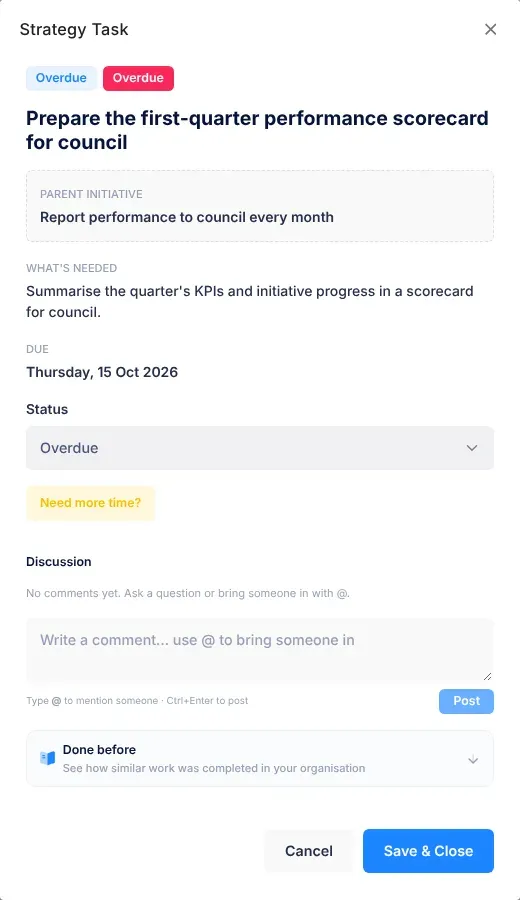
Section titled “What the panel shows”Select a strategy task in the calendar. The Strategy Task panel opens on the right, with:
- Badges: the task’s status, Overdue if it isn’t done and its due date has come, and Rescheduled with the number of times its date has moved, for example Rescheduled 2×.
- The title, the Parent initiative and What’s needed (the task’s details).
- Due: the due date, and “Originally” with the first due date if it has moved.
- Status, Discussion and Done before.
Change a task’s status
Section titled “Change a task’s status”- Open Execution, then Calendar and select the strategy task.
- In Status, choose Pending, In Progress, Done, Blocked, Overdue or Rescheduled. Pending is what the task’s own page calls Not started.
- If you chose Done, write in How did you get it done?: the steps you took, who you worked with, and anything to watch out for. Write at least a few sentences (15 characters or more).
- Select Save & Close.
The panel closes and the calendar updates. A task marked Done leaves the calendar.
Ask for more time
Section titled “Ask for more time”- Open the strategy task in the calendar.
- Select Need more time?.
- Choose a New due date, today or later.
- In Reason, say why you need more time.
- Select Save & Close.
The task moves to its new date in the calendar. Its first due date is kept, the move is counted, and your reason is recorded. The status stays as it was: it doesn’t change to Rescheduled. If the task is for someone else, they get an email and a notification, Due date changed, with your reason.
To keep the current date after all, select Keep the current date before you save.
Discuss the task
Section titled “Discuss the task”Discussion shows the same messages as the task’s own page.
- Under Discussion, type in the box, Write a comment… use @ to bring someone in.
- To bring a colleague in, type @ and the first letters of their name, then select them.
- Select Post, or press Ctrl + Enter.
Your comment is saved straight away, even if you then select Cancel. People you mention get a notification, “… mentioned you”, that opens the task. If they haven’t seen it after 10 minutes and aren’t using VirgilTrack at that moment, they also get an email, unless they have switched off emails for Mentions. Nobody else is told about your comment.
If something goes wrong
Section titled “If something goes wrong”| Message | Why | What to do |
|---|---|---|
| “Pick a new due date and give a reason, or choose “Keep the current date”.” | You opened Need more time? but the date or the reason is missing. | Fill in both, or select Keep the current date. |
| “Describe how it was done (a few sentences) before marking it done.” | You chose Done with no note, or a very short one. | Write how it was done. |
Select Cancel to close the panel without saving a change to the status or date.