

The CEO Dashboard
Hierdie inhoud is nog nie in jou taal beskikbaar nie.
The CEO Dashboard shows the whole organisation on one page. Use it to see how much risk the organisation carries, which departments need attention, and whether the people who report to you have sent their weekly reports.
Open the CEO Dashboard
Section titled “Open the CEO Dashboard”The CEO Dashboard opens when you sign in. To come back to it from anywhere:
-
Select Dashboard in the menu on the left.
The CEO Dashboard opens.
The dashboard at a glance
Section titled “The dashboard at a glance”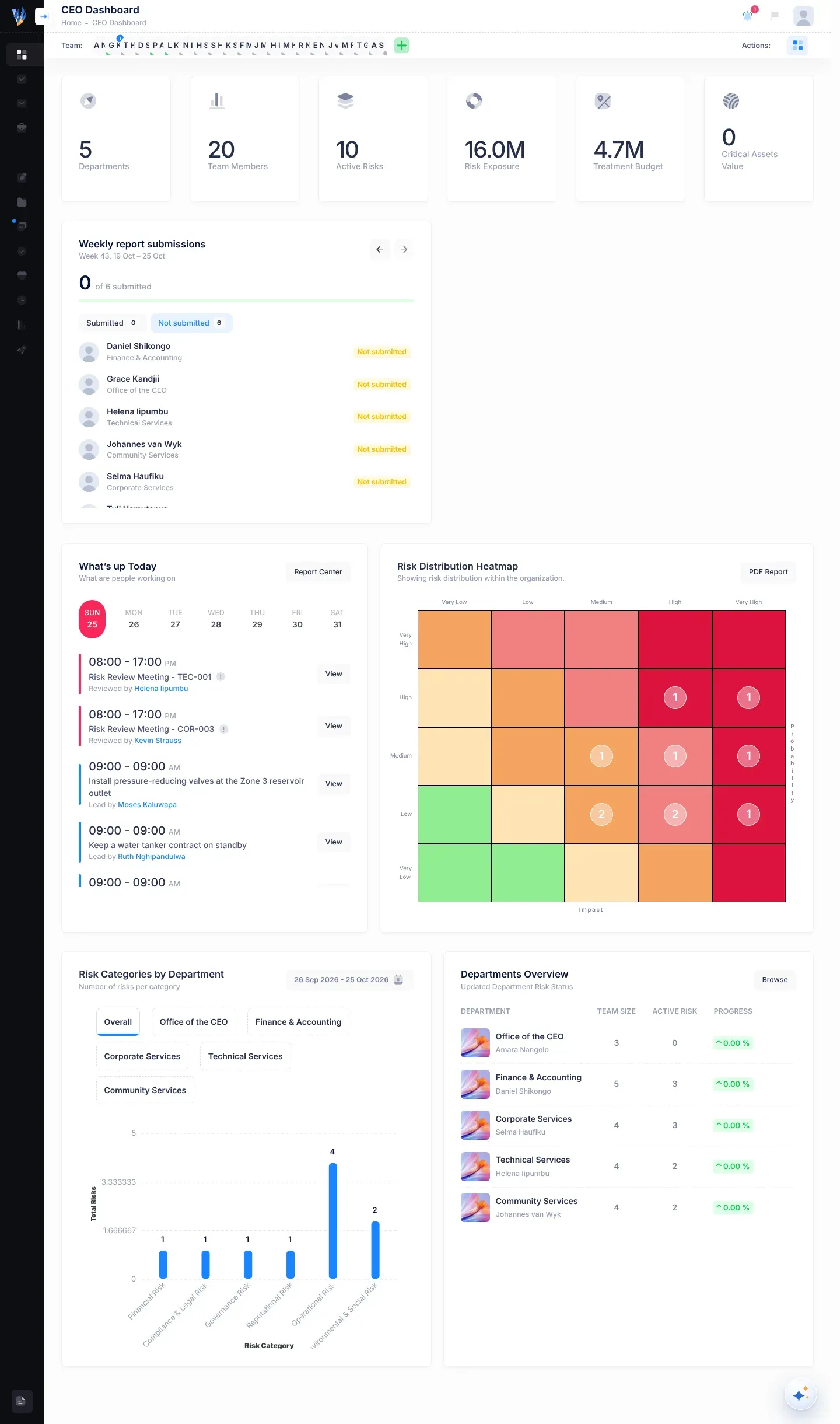
From top to bottom, the dashboard shows:
- Six organisation figures in a row of small cards.
- Weekly report submissions from the people who report to you.
- What’s up Today, with the organisation’s risk reviews and control reviews by day.
- Risk Distribution Heatmap for the whole organisation.
- Risk Categories by Department, a bar chart.
- Departments Overview, a table of your departments.
The bar under the header
Section titled “The bar under the header”Under the header, Team: shows the pictures of everyone in your organisation whose account is active. Select a picture to chat with that person. The green plus button at the end, Invite a team member, invites someone new. See The team bar and Invite team members.
At the right of the bar, after Actions:, the Enable grid view button (its name shows when you point at it) doesn’t do anything yet. See Known limitations.
Organisation figures
Section titled “Organisation figures”The six cards at the top add up figures for your whole organisation.
| Card | What it shows |
|---|---|
| Departments | How many departments your organisation has in VirgilTrack. This includes a department called Executive Suite, the CEO’s own, if you have one. The cards further down leave it out. |
| Team Members | How many people in your organisation have a VirgilTrack account, including you. Accounts that have been deactivated, for example of people who have left, still count. |
| Active Risks | How many risks have the status New or In Progress and haven’t been marked as mitigated. |
| Risk Exposure | The total Financial exposure of every risk that hasn’t been marked as mitigated. |
| Treatment Budget | The total Mitigation budget of every risk that hasn’t been marked as mitigated. This is what the organisation expects to spend on dealing with its open risks. |
| Critical Assets Value | This card doesn’t add anything up yet, so it shows 0. |
Money is shortened: “K” means thousands and “M” means millions. For example, 12.4M is about N$ 12,400,000.
Weekly report submissions
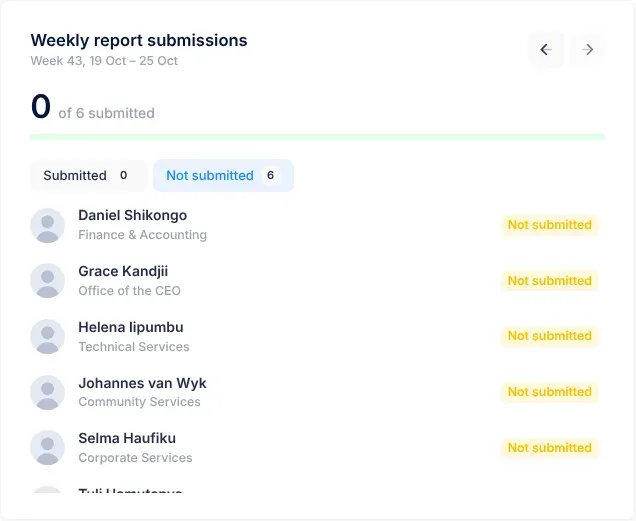
Section titled “Weekly report submissions”This card shows whether the people who report directly to you have submitted their weekly report. Only people whose Reports to is set to you are listed, and only if their account is active.
Choose a week
Section titled “Choose a week”The line under the title names the week, for example “Week 43, 19 Oct – 25 Oct”. Weeks run from Monday to Sunday. Use the Previous week and Next week arrow buttons to move between weeks. You can’t go past the current week.
Read the summary
Section titled “Read the summary”The large number shows how many people have submitted, for example “3 of 5 submitted”. The green bar under it fills up as more people submit.
The tabs
Section titled “The tabs”| Tab | Who it lists |
|---|---|
| Submitted | People who have sent their report for that week, earliest first. |
| Not submitted | People whose report for that week hasn’t been sent yet, by name. The card opens on this tab. |
| No report | People who don’t have a report for that week at all, by name. This tab only appears when someone is in this state. |
The number on each tab shows how many people it lists. When a tab lists nobody, it says “No reports submitted yet this week.” (Submitted) or “Everyone has submitted.” (Not submitted).
Each person
Section titled “Each person”Each row shows the person’s picture, name and department (“No department” if they have none), and a badge:
| Badge | What it means |
|---|---|
| A green badge with a day and time, such as “Mon 14:05” | They submitted their report, at that time. If the time isn’t known, the badge just says Submitted. |
| Not submitted, in yellow | Their report exists but they haven’t sent it yet. |
| No report, in red | VirgilTrack hasn’t created a report for them for that week yet, so they can’t submit one. Point at the badge to read why. |
To read the reports themselves, see Review your team’s reports.
What’s up Today
Section titled “What’s up Today”On the CEO Dashboard, What’s up Today lists the risk reviews and control reviews of the whole organisation, by day of the week. Today’s day is selected when the page opens. See The What’s up Today card.
Risk Distribution Heatmap
Section titled “Risk Distribution Heatmap”The heat map places all of the organisation’s open risks on a grid of probability by impact. Under the title it says “Showing risk distribution within the organization.” See The risk heat map. At present the heat map counts risks in the wrong rows, so read What the numbers mean before you rely on it.
Risk Categories by Department
Section titled “Risk Categories by Department”This bar chart shows how many risks each department has in each risk category, such as Financial Risk or Operational Risk.
- Overall shows all departments together. It is selected when the page opens.
- Select a department’s name to see that department only.
- Each bar is one risk category, with its number of risks on top. The bottom axis is labelled Risk Category and the side axis Total Risks.
- Only categories that have at least one risk get a bar.
The chart counts every risk recorded in the department, whatever its status, including mitigated ones. The Executive Suite isn’t included.
Departments Overview
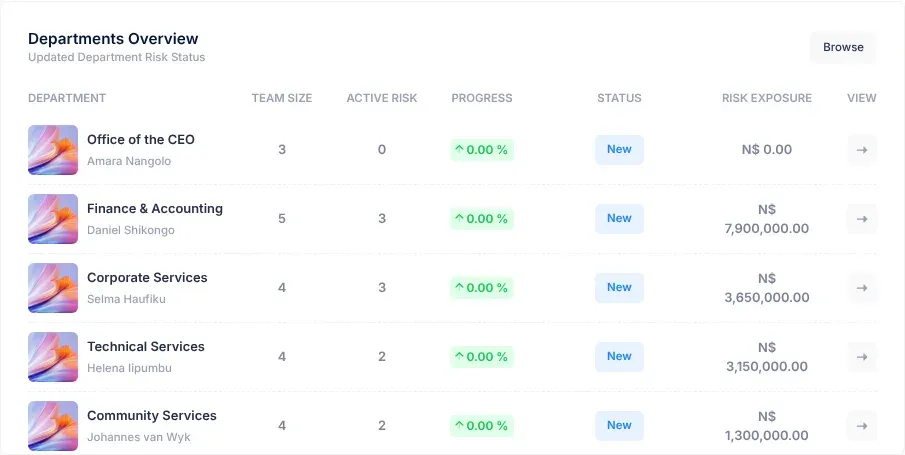
Section titled “Departments Overview”This table lists your organisation’s departments, except the Executive Suite.
| Column | What it shows |
|---|---|
| DEPARTMENT | The department’s picture and name. Under the name is the department manager’s name, when one is set. |
| TEAM SIZE | How many people are in the department, including deactivated accounts. |
| ACTIVE RISK | How many of the department’s risks have the status New or In Progress and aren’t mitigated. |
| PROGRESS | Of the risks recorded in the department this calendar year, the percentage marked as mitigated. It is rounded down to a whole number, for example “50.00 %”. |
| STATUS | The department’s overall risk status. Departments start as New. |
| RISK EXPOSURE | The total Financial exposure of the department’s risks that aren’t mitigated, in full, for example “N$ 1,250,000.00”. |
| VIEW | An arrow button that opens the department’s page. |
Select a department’s name, its picture or the arrow button to open that department’s page, with its people, work, risks and settings. Select Browse at the top of the card to open the Departments page. See Departments.
Why the risk numbers differ between cards
Section titled “Why the risk numbers differ between cards”The cards count risks in different ways, so their numbers don’t always match.
| Card | Which risks it counts |
|---|---|
| Active Risks, ACTIVE RISK and the heat map | Only risks with the status New or In Progress that aren’t mitigated. |
| Risk Exposure, Treatment Budget and RISK EXPOSURE | Every risk that hasn’t been marked as mitigated, whatever its status. Archived risks, and risks moved to Mitigated on the Kanban board, still count. |
| Risk Categories by Department | Every risk, including mitigated ones. |
If something goes wrong
Section titled “If something goes wrong”| What you see | Why | What to do |
|---|---|---|
| “Nobody reports to you yet. Staff appear here once their “Reports to” is set to you.” | No one in VirgilTrack reports directly to you. | Set people’s reporting lines under Reporting hierarchy in your account menu. See Settings. |
| Someone has a red No report badge | VirgilTrack hasn’t created their report for that week yet. | Check again later. If it stays, contact your VirgilTrack administrator. |
| A department is missing from Departments Overview | The Executive Suite is never listed. | Nothing is wrong. |
| “No departments to display here” | Your organisation has no departments besides the Executive Suite yet. | Add departments. See Departments. |
| Critical Assets Value shows 0 | This card doesn’t add up any values yet. | Nothing is wrong. |
| A figure hasn’t changed after an update | The dashboard worked out its figures when it opened. | Reload the page in your browser. |