

The risk register
Hierdie inhoud is nog nie in jou taal beskikbaar nie.
The Risk Register lists your department’s risks in one table. Use it to see which risks are the most serious, which reviews are due, and which risks still need work.
Open the risk register
Section titled “Open the risk register”Select Risk Register in the menu on the left. Managers and employees also see the register first when they open VirgilTrack.
The register shows the risks recorded by your department. A risk belongs to the department of the person who recorded it. Choosing other departments under Affected departments doesn’t add the risk to their registers.
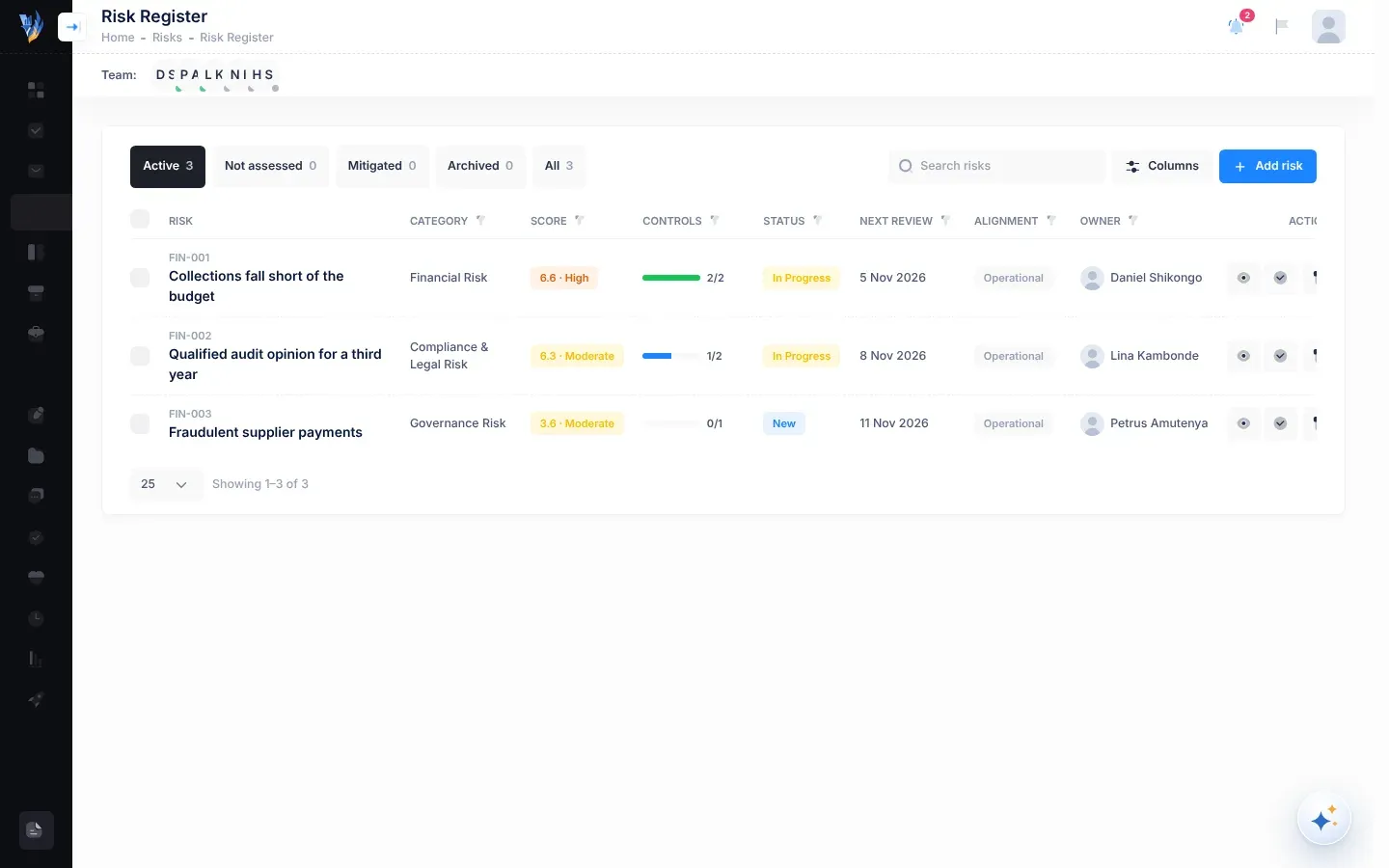
The register at a glance
Section titled “The register at a glance”- Group buttons along the top choose which risks you see. Each shows how many risks it holds.
- Search risks, Columns and Add risk are at the top right.
- The table has one row per risk. Select a row to open the risk.
- The footer shows how many risks match and lets you move between pages.
Groups
Section titled “Groups”| Group | Which risks it shows |
|---|---|
| Active | Risks still being worked on: New, In Progress and Not assessed. This is the group you see first. |
| Not assessed | Risks copied from the Risk Repository that their owner hasn’t assessed yet. |
| Mitigated | Risks that have been marked as mitigated. |
| Archived | Risks that have been archived. |
| All | Every risk in your department’s register. |
Columns
Section titled “Columns”| Column | What it shows |
|---|---|
| Risk | The risk’s code (for example FIN0012C) and its name. |
| Category | The kind of risk, such as Financial Risk or Operational Risk. |
| Score | The risk score out of 10 and its level, for example 6.6 · High. A risk that hasn’t been assessed shows Not assessed. See How risk scores work. |
| Controls | How many of the risk’s controls are done, as a bar and a number such as 2/3. None means it has no controls yet. Controls that VirgilTrack’s AI suggested and nobody has accepted aren’t counted. |
| Status | New, In Progress, Not assessed, Mitigated or Archived. Point at the badge to read what the status means. |
| Next review | The date of the risk’s next review. If the date has passed and the risk is still open, it shows in red with overdue under it. A risk that isn’t assessed shows a dash. |
| Alignment | Strategic (2) means the risk threatens two objectives in your strategic plan. Point at it to see which. Operational means it threatens none. |
| Owner | The person who recorded the risk. |
| Created | The date the risk was recorded. This column is hidden at first. |
| Actions | Buttons for the row. See Row buttons. |
Choose which columns you see
Section titled “Choose which columns you see”-
Select Columns.
-
Tick or untick the columns under Show columns.
You can’t hide Risk.
-
Select anywhere outside the list to close it.
If you hide a column, any filter or sort on it is removed too.
Row buttons
Section titled “Row buttons”What you see in the Actions column depends on the risk.
| Button | When you see it | What it does |
|---|---|---|
| Assess | The risk is Not assessed and you are its owner. | Opens the assessment panel. See Assess a risk. |
| Awaiting and a name | The risk is Not assessed and someone else owns it. | Nothing. Only the owner can assess the risk. |
| Open (eye) | The risk has been assessed. | Opens the risk’s page. See A risk’s page. |
| Mark as mitigated (tick) | The risk is New or In Progress. | Closes the risk as mitigated. If controls are still to do, pointing at it says how many. |
| Archive (box) | The risk is New or In Progress. | Moves the risk to the Archived group. |
Selecting the row itself does the same as Open, or as Assess for a risk you need to assess. For marking risks as mitigated and archiving them, see Mark a risk as mitigated or archive it.
Search the register
Section titled “Search the register”Type in Search risks. The table shows only the risks whose code, name, category, status or owner contain what you typed. The search looks only inside the group you’ve chosen.
To find risks that aren’t assessed yet, choose the Not assessed group instead. Typing “Not assessed” in the search box doesn’t find them.
Filter by a column
Section titled “Filter by a column”Some column titles have a small funnel button next to them: Category, Score, Controls, Status, Next review, Alignment and Owner.
-
Select the funnel next to the column title.
-
Tick the values you want to see. The list only offers values that risks in your chosen group have, and the number next to each value shows how many risks have it.
If the list is long, type in Find… to narrow it down.
-
Select Done.
When a column is filtered, its funnel is highlighted and shows how many values you ticked. Filters on different columns work together: a risk must match all of them.
Some columns filter by plain-language groups instead of exact values:
| Column | Filter values |
|---|---|
| Score | Low, Moderate, High, Critical, Not assessed |
| Controls | No controls, In progress (some controls still to do), All done |
| Next review | Overdue, Within 7 days, Later, Not scheduled |
| Alignment | Strategic, Operational |
To remove one column’s filter, open its funnel and select Clear. To remove every filter and the search, select Clear filters at the top.
Sort the register
Section titled “Sort the register”At first, risks that aren’t assessed come first, then the rest from the highest score to the lowest.
- Select a column title to sort by it. Select it again to reverse the order, and a third time to stop sorting by it. An arrow shows the direction.
- Hold Shift while you select a second column title to sort by both. Small numbers show the order of the sorts.
Move between pages
Section titled “Move between pages”The register shows 25 risks at a time. Below the table, Showing 1–25 of 40 tells you where you are.
- Choose 10, 25, 50 or 100 in the rows-per-page box below the table to show more or fewer rows.
- Use the page numbers and the previous and next arrows below the table to move between pages. They appear when there is more than one page.
Select several risks
Section titled “Select several risks”Tick the box at the start of a row to select it. Tick the box in the header row to select every risk on the page.
While risks are selected, a bar above the table shows how many, with these buttons:
- Select all and a number: shown when you’ve selected the whole page and more risks match. It selects every risk that matches your group, search and filters.
- Mark as mitigated: close all the selected risks as mitigated.
- Archive: archive all the selected risks.
- Clear: unselect them all.
Changing the group unselects everything, so a bulk action never mixes groups.
Highlighted rows
Section titled “Highlighted rows”Some rows have a pale yellow background. VirgilTrack highlights:
- a risk you’ve just added, so you can spot it;
- risks you’ve just copied from the Risk Repository. The register opens on Not assessed with those risks selected.
When the register is empty
Section titled “When the register is empty”- No risks recorded yet means your department has no risks. Select Add risk to record one, or Open repository to copy suggested risks. See Add a risk and The risk repository.
- No risks match means risks exist, but none fit your group, search or filters. Try another group, or select Clear filters.