

Mark a control as implemented
Hierdie inhoud is nog nie in jou taal beskikbaar nie.
When the work on a control is done, mark it as implemented and say how you did it. VirgilTrack records who did it and when, and the risk moves one step closer to being mitigated.
Before you start
Section titled “Before you start”You can mark a control as implemented if you are:
- the control’s responsible person,
- the person who added the control,
- the risk’s owner,
- a manager, or
- the CEO.
Anyone else can open the control and comment on it, but doesn’t see Mark as implemented.
Mark a control as implemented
Section titled “Mark a control as implemented”-
Open the risk’s page and select the Controls tab.
Managers and employees: Risk Register, then the risk. The CEO: select your picture, then Risk Register, and select the risk.
-
Under To do, select the control.
Its panel opens at the side of the screen.
-
In How did you implement it?, write what you did.
Say what steps you took, who you worked with and what to watch out for. On the risk’s page the notes are optional, but the next person given a control like this will see them.
-
Select Mark as implemented.
-
Open the control.
Select Open the control in an email from VirgilTrack, or a Risk control assigned to you or Control review due notification. You can also select the control in the calendar (Execution, then Calendar) or in the This week bar of your weekly report.
-
In How did you implement it?, write a few sentences on what you did, then click outside the box.
Here the notes are required: “Required: a few sentences on how it was implemented.” Mark as implemented stays unavailable until you have written at least 15 characters.
-
Select Mark as implemented.
What happens next
Section titled “What happens next”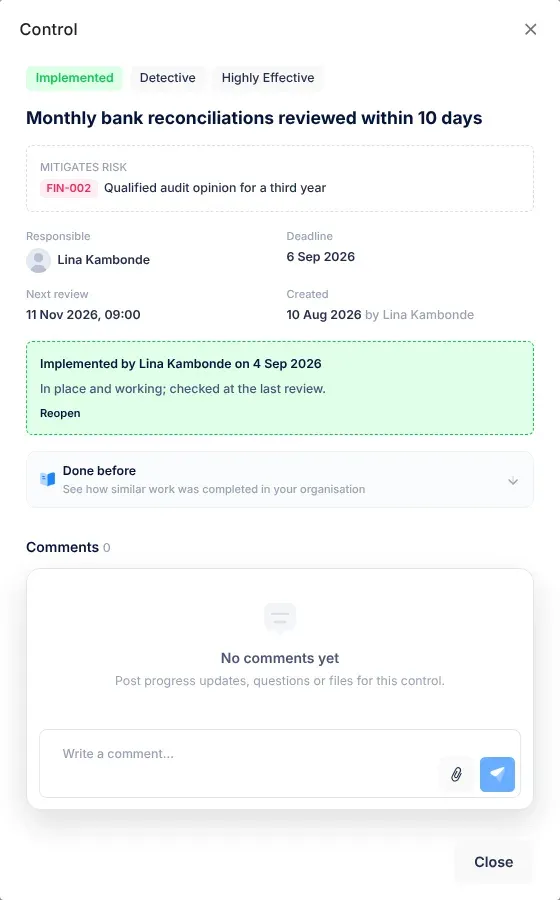
- You see the message “Control marked as implemented.”
- The panel shows the Implemented badge and “Implemented by” your name and today’s date, with your notes.
- On the risk’s page, the control moves from To do to Done, and Controls implemented goes up.
- When every control is done, the risk’s Mark as mitigated button becomes available. See Mark a risk as mitigated or archive it.
- Deadline reminders for the control stop, and it leaves the calendar. Reminders for its review date still come, so the responsible person can check that the control is still working.
- The control shows as done on the responsible person’s Work Record. See Your work record.
- VirgilTrack may suggest a line about the work for your weekly report. See Suggestions and activity prompts.
- Nobody is sent a notification. If the person who added the control is waiting for it, tell them, or add a comment on the control.
Reopen a control
Section titled “Reopen a control”Reopen a control that was marked as implemented by mistake, or that turns out not to be finished. You can reopen a control if you marked it as implemented, or if you are a manager or the CEO.
-
Open the control’s panel.
On the risk’s Controls tab, implemented controls are under Done.
-
In the box that says “Implemented by” and the person’s name, select Reopen.
The control goes back to To do, or Overdue if its deadline has passed. The record of who implemented it and when is removed. The notes stay in How did you implement it?, so you can update them when you finish the work. No message appears and nobody is notified.
Accept an AI suggestion
Section titled “Accept an AI suggestion”A control suggested by VirgilTrack’s AI waits under AI suggested until someone accepts it. Until then it doesn’t count towards the risk’s controls, and it doesn’t stop the risk from being mitigated.
-
On the risk’s Controls tab, select AI suggested.
-
Select the suggestion.
The panel says “The AI suggested this control. Accept it to add it to the risk’s to-do list.”
-
Select Accept as a control.
The control moves to To do. If the suggestion had no responsible person, you become responsible for it. The same people who can mark a control as implemented can accept a suggestion.
Use Virgil Copilot
Section titled “Use Virgil Copilot”You can also ask Virgil Copilot to list the controls you are responsible for, or to mark one as implemented. Copilot asks you to confirm before anything changes, and the same rules apply about who may complete a control. See Confirm what Virgil prepares and AI assistant.
If something goes wrong
Section titled “If something goes wrong”| What you see | Why | What to do |
|---|---|---|
| There is no Mark as implemented button. | You aren’t the responsible person, the person who added the control, the risk’s owner, a manager or the CEO. | Ask one of them to mark it, or add a comment saying the work is done. |
| Mark as implemented is greyed out. | You opened the control from an email, a notification, the calendar or your weekly report, and the notes are shorter than 15 characters. | Write a few sentences on how you did it, then click outside the box. |
| There is no Reopen link. | Only the person who marked it as implemented, a manager or the CEO can reopen a control. | Ask one of them. |
| “Couldn’t save. Please try again.” | Saving failed. The control is unchanged. | Try again. |
| “This control no longer exists, or you don’t have access to it.” | The control can’t be found in your organisation. | Check that you opened the right link. |
| Mark as mitigated is still unavailable on the risk’s page. | The risk still has controls under To do. | Finish them first. The risk’s page says how many are left. |