

Plan an initiative's tasks
Hierdie inhoud is nog nie in jou taal beskikbaar nie.
An initiative moves forward through tasks: concrete jobs, each given to one person and due in a given month. Planning an initiative’s year means adding its tasks month by month. Each task then appears in the assignee’s tasks, and on the Initiatives and Annual Plans pages.
Before you start
Section titled “Before you start”- Who can add tasks:
- on the Initiatives page: department managers, for the departments they head; any manager, for their own department; and the people who lead the initiative;
- on the Annual Plans page: the CEO, and people the CEO has given the Annual Plans page.
- The initiative must belong to a department. You can give the task to someone in that department or one of its managers.
- A task can only be due in the current month or a later one. Months that have passed can’t take new tasks.
Add a task
Section titled “Add a task”-
Open Execution, then Initiatives.
-
Find the initiative’s row and the month the task is due in. Point at that month’s box, then select Add task.
The window Delegate a task opens, with the month in its title, for example “Delegate a task · March 2027”.
-
Fill in Task: what needs to be done to move the initiative forward.
VirgilTrack may suggest a task under Virgil suggests. Select Use this to copy it into the form, or Dismiss to hide it.
-
If you like, fill in Details: instructions, what done looks like, what to hand in.
-
Choose the person in Assigned to. Next to each name, a badge shows how busy they are that month, for example “Free in March” or “3 tasks in March”.
-
Check the Due date. It is set to the month’s last working day, or to today if that day has passed. You can choose any day of that month that hasn’t passed.
-
Choose a Priority.
-
Select the button at the bottom right. It names the person, for example Delegate to Petrus.
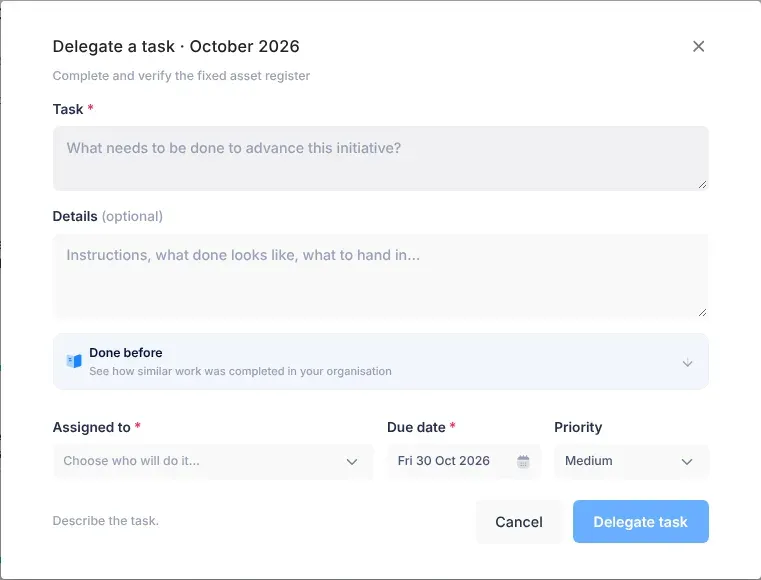
- Open Execution, then Annual Plans.
- Select a department’s name to plan its whole year, or a month’s cell in its row to plan that month.
- In the panel that opens, select Add a task (or Add a task for and the month).
- Choose the Initiative. Only the department’s initiatives in this plan are listed.
- Fill in Task and, if you like, Details.
- Choose who it is for in Assign to, and a Priority.
- If you opened the department’s whole year, choose the Month. Months with nothing planned yet say unplanned. The first unplanned month is chosen at first.
- Check Due. It is set to the month’s last working day, or to today if that day has passed.
- Select Assign the task.
Choosing a priority
Section titled “Choosing a priority”| Priority | When to use it |
|---|---|
| Low | When there’s time. |
| Medium | Part of the plan. This is chosen at first. |
| High | A key deliverable: marked as one in the annual plan. |
| Critical | Must not slip: a key deliverable in the annual plan. |
High and Critical tasks show a flag on the Initiatives page, and are counted as high priority on the Annual Plans page.
Learn from similar work
Section titled “Learn from similar work”In the Delegate a task window, open Done before to see how similar work was completed in your organisation: who did it, how long it took, and how it was done. Select Summarise how others did it for a short AI summary. Use it to choose a realistic due date and the right person.
What happens next
Section titled “What happens next”- A message confirms it, for example “Task delegated to Petrus Amutenya, due 31 March.” or “Assigned “Issue the tender” to Petrus Amutenya, due 31 Mar.”
- The task appears in its month on the Initiatives page and the Annual Plans page, and in the assignee’s tasks. It shows as Pending on the Initiatives page, and as Not started on the person’s Tasks page.
- The person you chose gets a “New task delegated to you” notification and an email, and a text if their settings allow it. See Delegate a task.
- From now on, the task counts towards the initiative’s progress and status. See The Initiatives page.
To change the task later, or to discuss it, open it from its card and select Edit task. See Tasks.
If something goes wrong
Section titled “If something goes wrong”| What you see | Why | What to do |
|---|---|---|
| The Delegate button can’t be selected | Something is missing. A hint on the left says what: “Describe the task.”, “Choose a due date.” or “Choose who will do it.” | Fill in what the hint asks for. |
| “March 2027 has passed: a task can’t be due in it any more.” | The month is over. | Close the window and select Add task in a current or later month. |
| No Add task buttons | The button only shows when you point at a month’s box. If it still doesn’t appear, you can’t plan this initiative’s work. | Point at the month’s box. Otherwise, ask the department’s manager, or your CEO. |
| “Give the task a title.”, “Choose who it’s for.” or “The due date must be between …” | A field on the Annual Plans form is missing or out of range. | Fill it in. The due date must be in the chosen month, and not in the past. |
| “No months left to plan in this year” | Every month of this plan year has passed. | Choose a later year at the top of the Annual Plans page. |
| The department “has no initiatives in this plan yet” | No initiative in the plan belongs to this department. | Initiatives are given to departments in the strategic plan. Ask your CEO. |
| “The task couldn’t be saved just now.” | Saving failed. | Try again in a moment. |